This article will help you troubleshoot issues with staff not seeing any classes in using their login.
Here are the things that you need to check:
Step 1- Under the Add/Edit page, make sure that the teacher is assigned to the specific classes

Step 2 - Go to team under Settings and click on User types.
Make sure that the teacher's user type has not been changed (it should be a user type that is ticked as "Is Teacher").

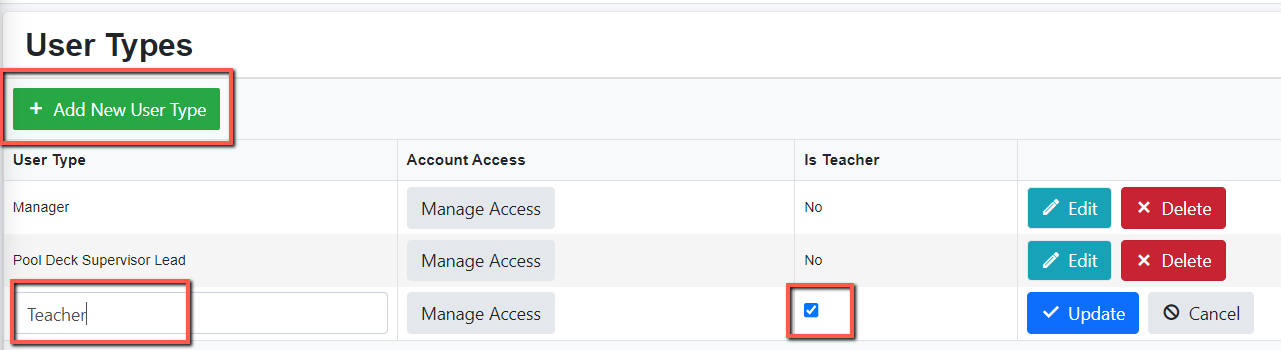
Step 3 - To check what is enabled for this user, click on “Manage Access” beside the user type.
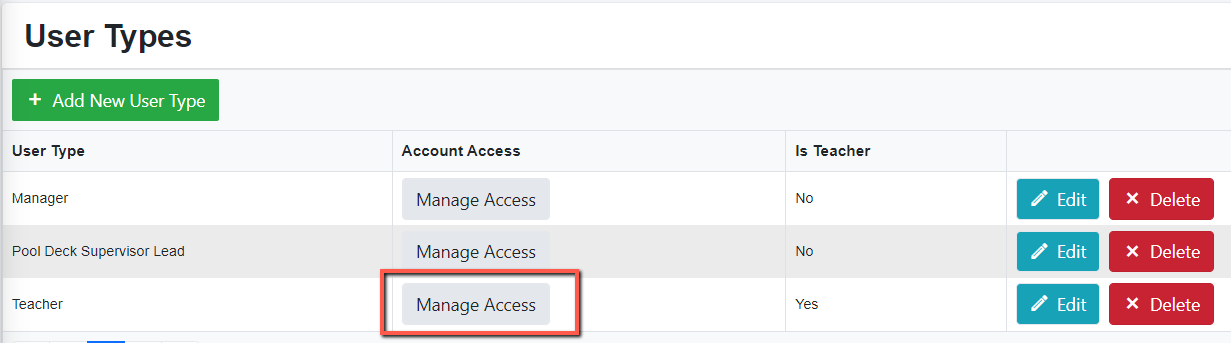
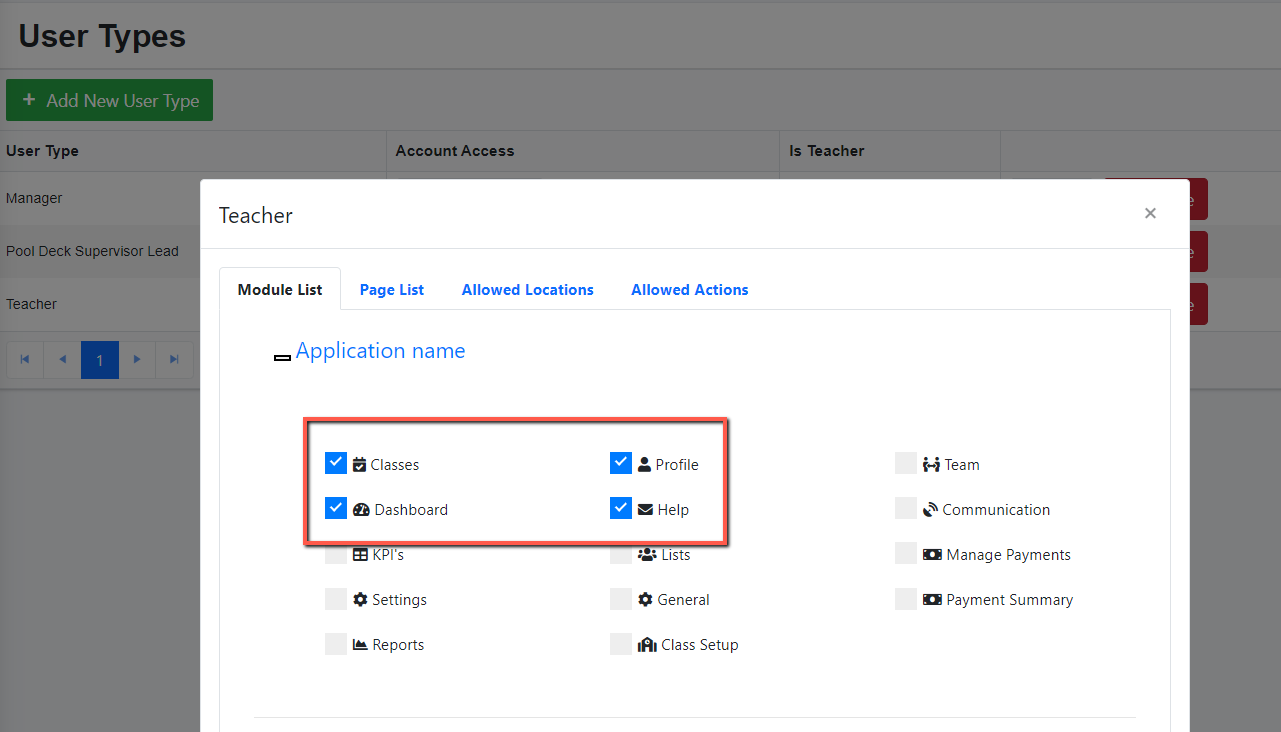
Step 4 - Tick on the boxes beside the feature that you want the user to access.
The example below shows features for the Teacher user type.
Step 5 - Check if that user has access to that class location.
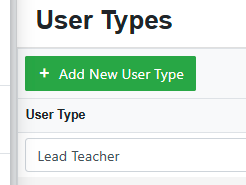
Note: A lead teacher can see all classes for a specific location.
To set up a lead teacher, you must include the word lead in your user type.
As for the teachers, click the Allowed location tab in the user type set-up.
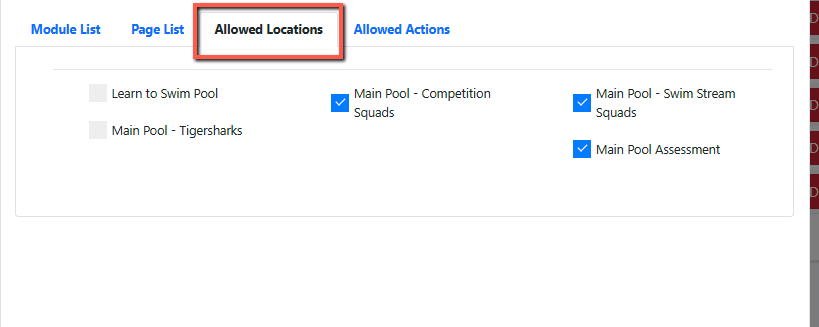
Ensure that users are ticked for the specific location you want them to have access to. That user will be able to see ALL classes for that specific location.
NOTE: There are instances where a user has 2 logins, a teacher and a manager login.
If the user is using a manager login, make sure that the user type is not ticked as a teacher for her manager login like the example below.
It should be Is Teacher = NO
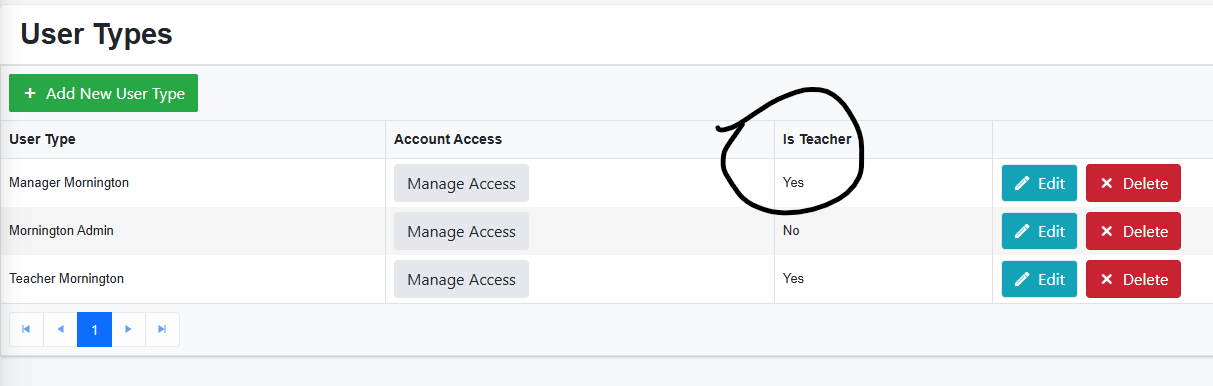
If she also teaches, she will need a second profile as a Teacher.
She would just log in via the manager login, but the teacher one can be a dormant login that is just used to assign her as a teacher of a class.
As she will have two profiles, she can just use a dummy email for the dormant teacher profile.
Was this article helpful?
That’s Great!
Thank you for your feedback
Sorry! We couldn't be helpful
Thank you for your feedback
Feedback sent
We appreciate your effort and will try to fix the article