This article will show parents how to pay their invoices through the Parent Portal.
Here are the steps:
Step 1 - Log in to the Parent Portal.
Use the email username and password associated with your account.
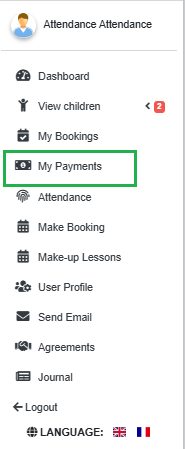
Step 2 - Go to My Payments in the Main Menu.
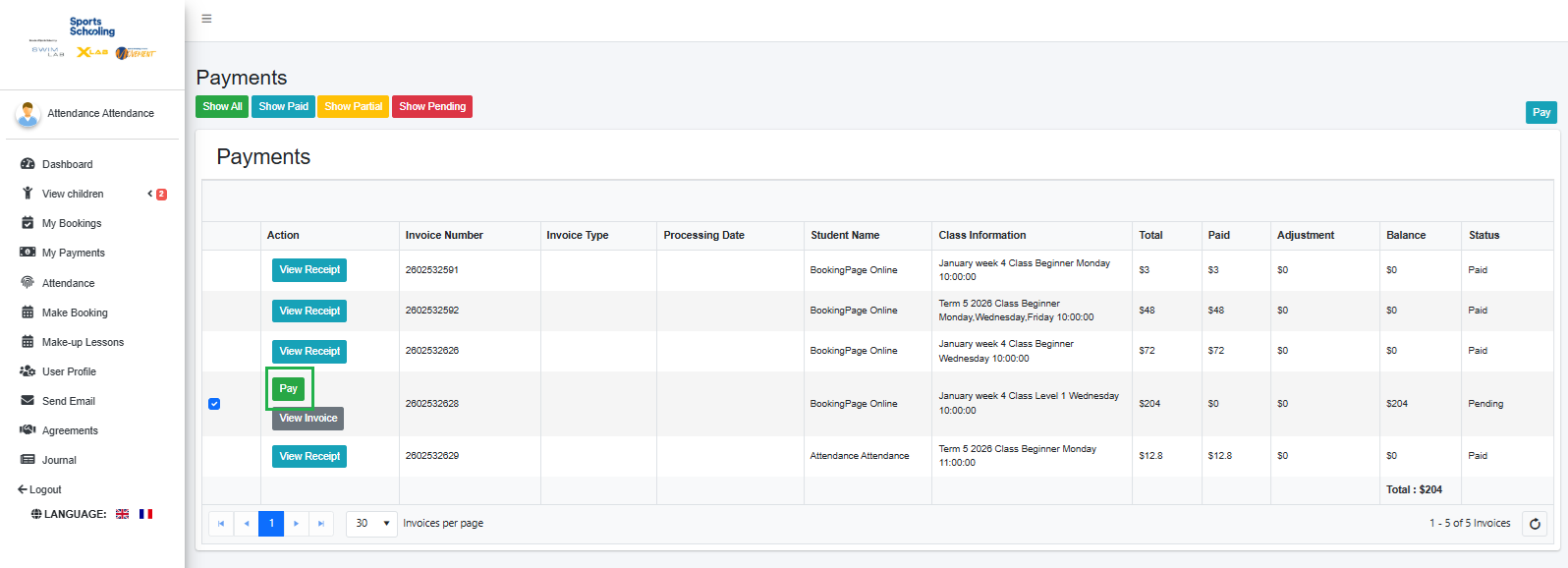
Step 3 - Look for the invoice you need to pay and click the green “Pay” button under the Action column.
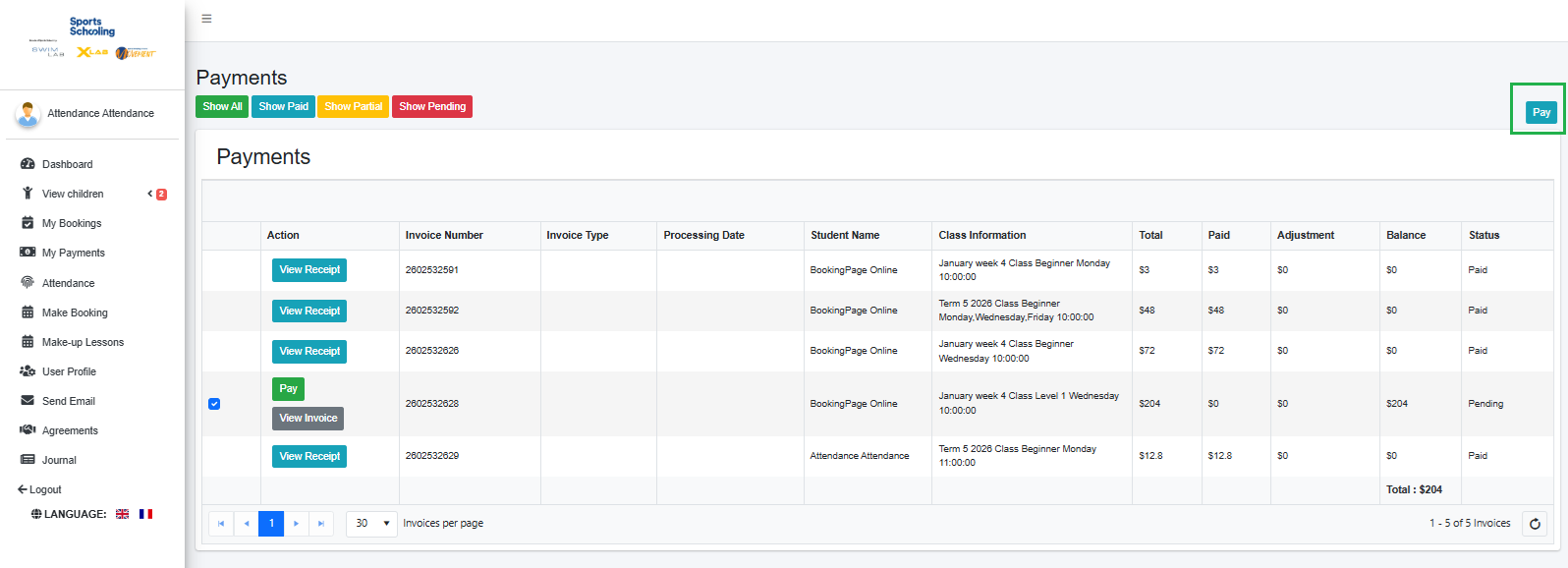
Step 4 - If multiple payments, tick the invoices you want to pay, then click the blue “Pay” button at the top right corner of the screen.
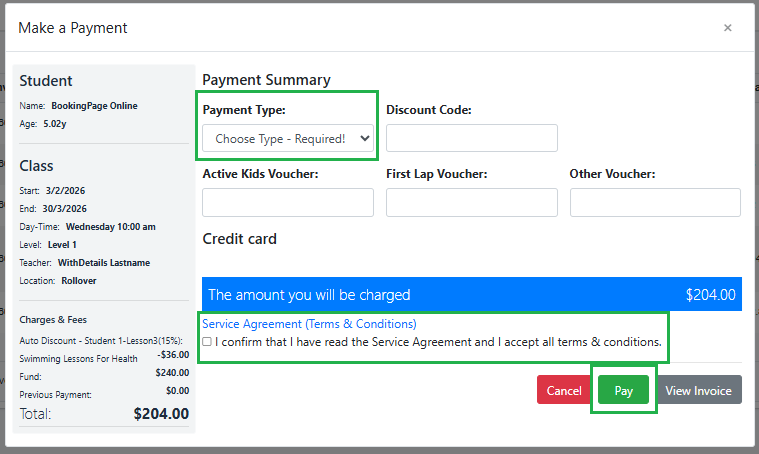
Step 5 - Choose a payment method.
Credit card, Direct Debit, depending on what the school or program accepts.
Step 6 - Confirm the Service Agreement (Terms & Conditions) and then click Pay.
Step 7 - The page will redirect to the payment gateway of your chosen payment type. Add your card details and proceed to pay the invoice.
Step 8 - Once payment is successful, payment details will appear in the portal, and a receipt will be emailed to you.
Was this article helpful?
That’s Great!
Thank you for your feedback
Sorry! We couldn't be helpful
Thank you for your feedback
Feedback sent
We appreciate your effort and will try to fix the article