This article will serve as your guide on how to reset your First Class App password.
If you have forgotten your password or need to update it for security reasons, follow the steps below to reset it.
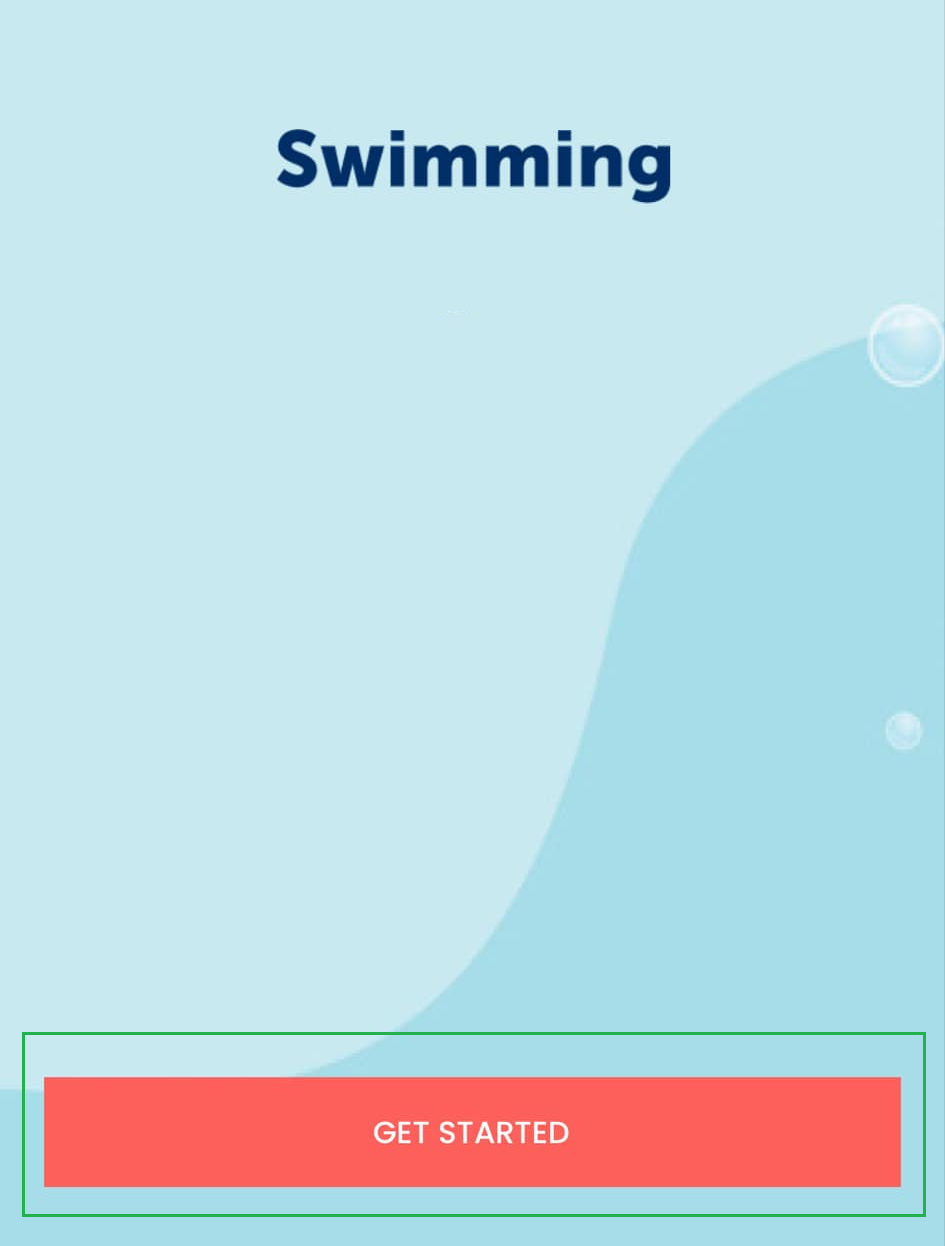
Step 1 - Launch the First Class App on your device. Make sure that it’s the latest version. If not, please update.
Step 2 - Tap on the "Get Started" button to proceed.
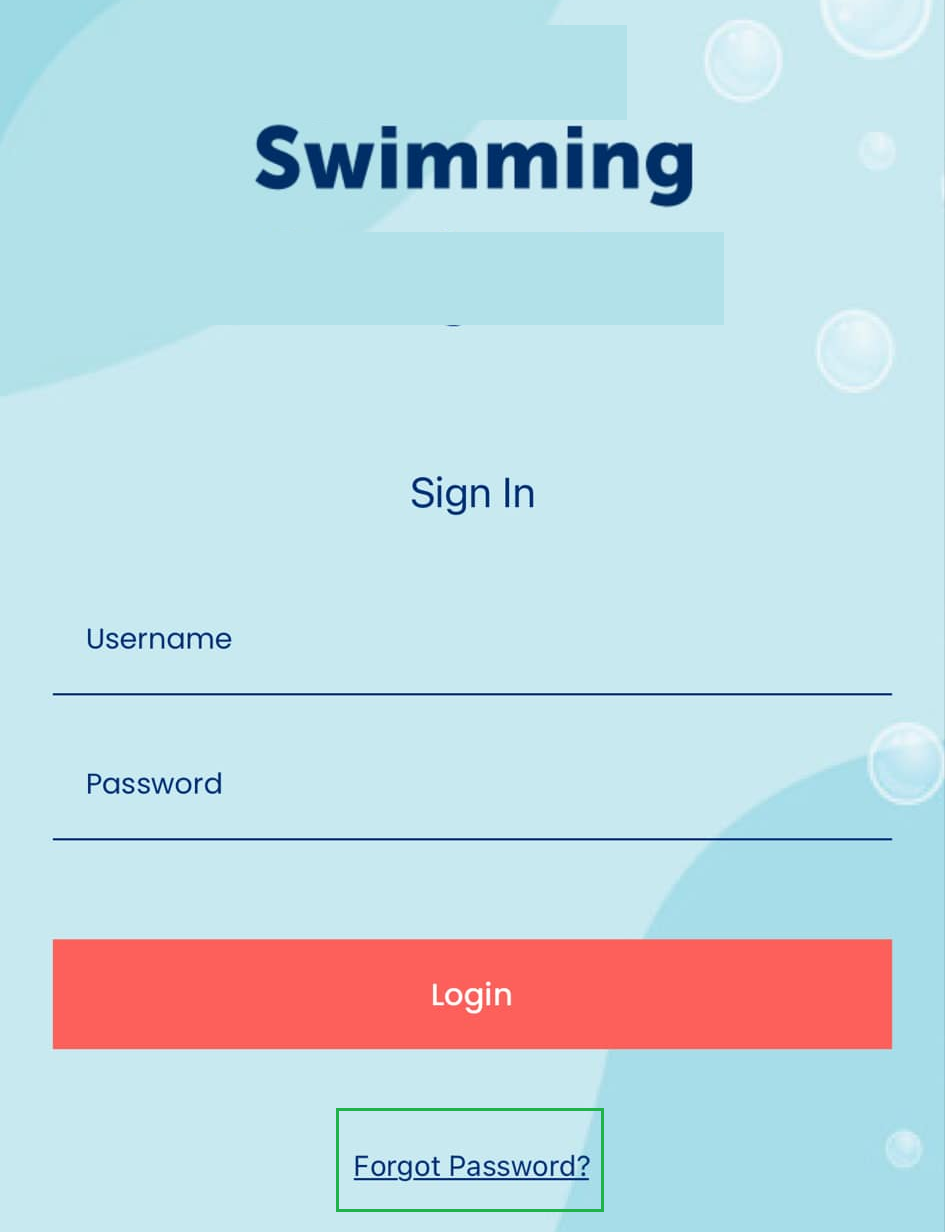
Step 3 - On the Log In page, click Forgot Password.
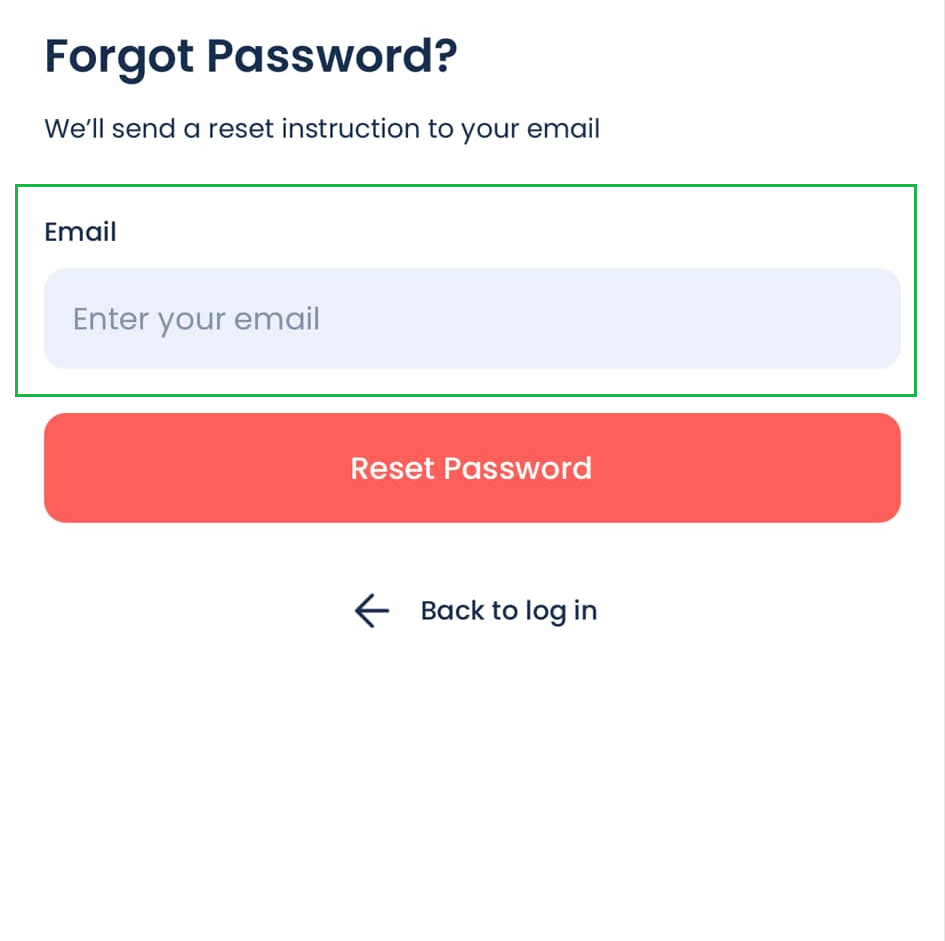
Step 4 - You will be redirected to the Forgot Password page. Enter your email address, then click “Reset Password”.
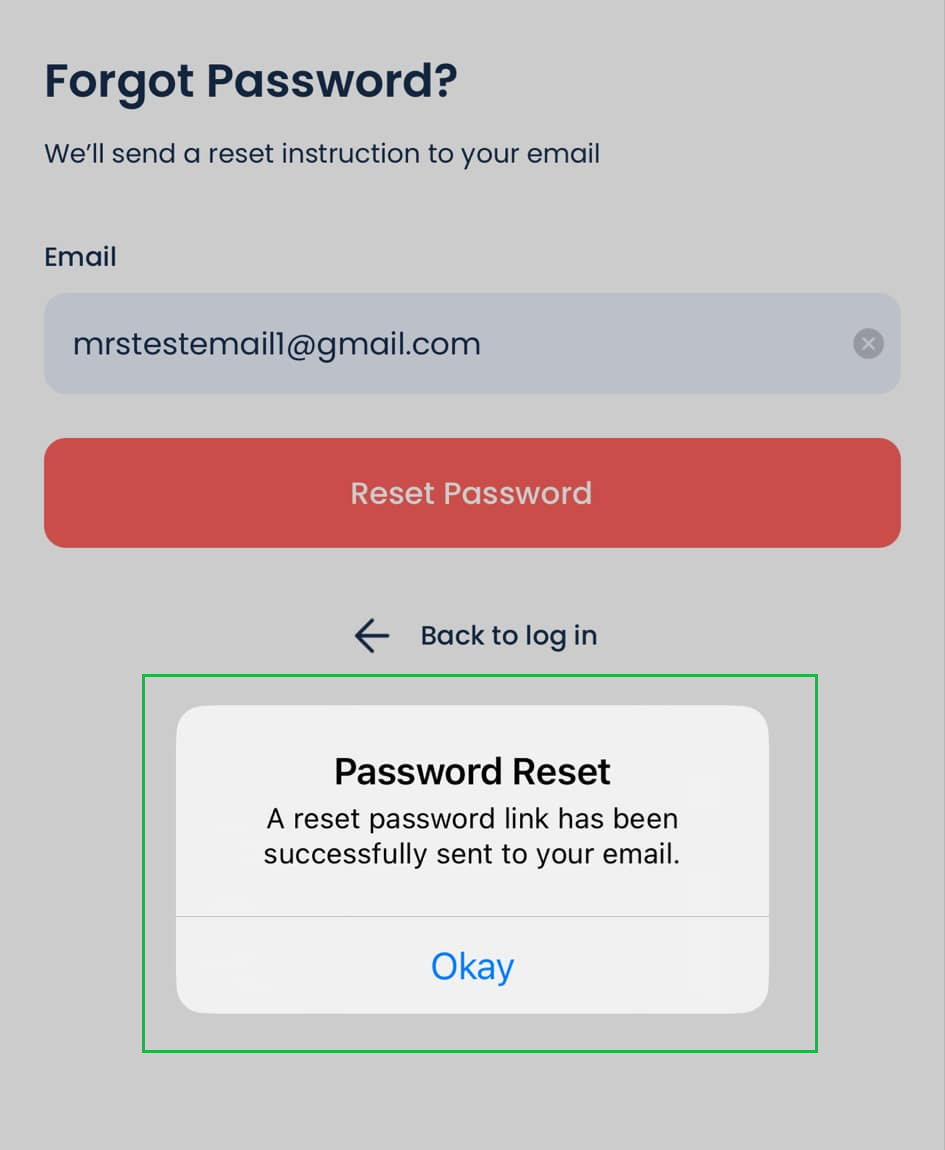
Step 5 - Check for Confirmation Message
If successful, a Password Reset Successful message will appear.
If unsuccessful, verify that your email and organisation details are correct. You can verify this from your facility.
Step 6 - Open your email service and find the email from First Class Software.
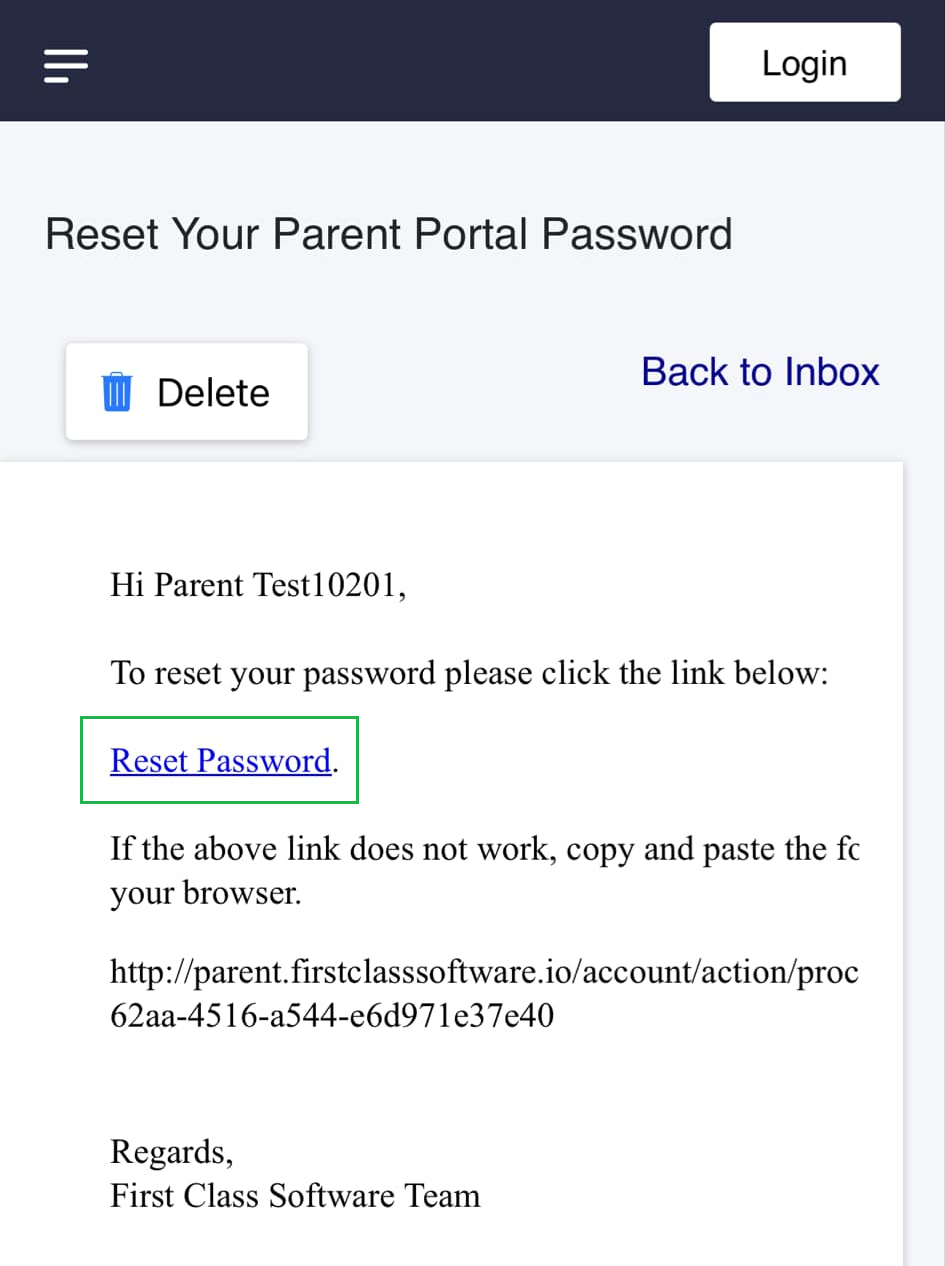
Step 7 - Click the Reset Password link in the email.
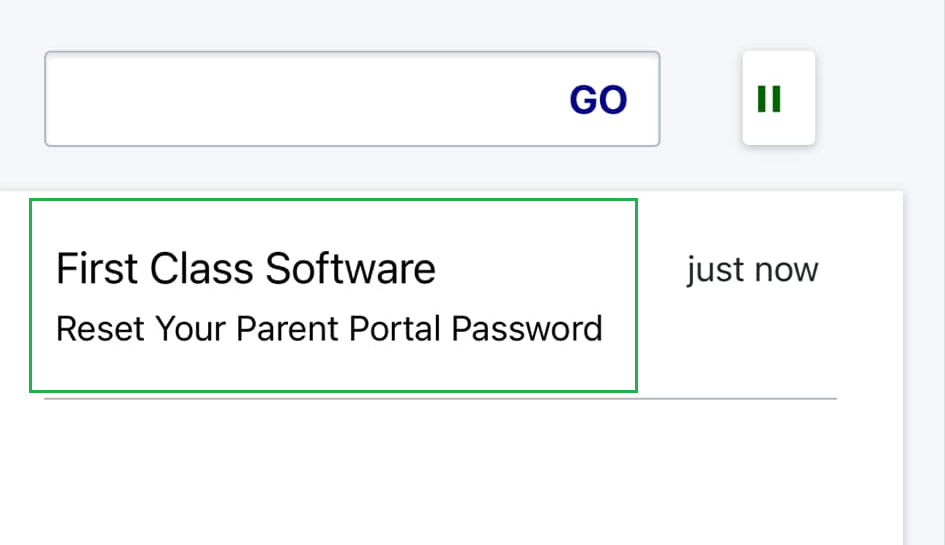
NOTE: If the link doesn’t work, copy the URL and paste it into your browser.
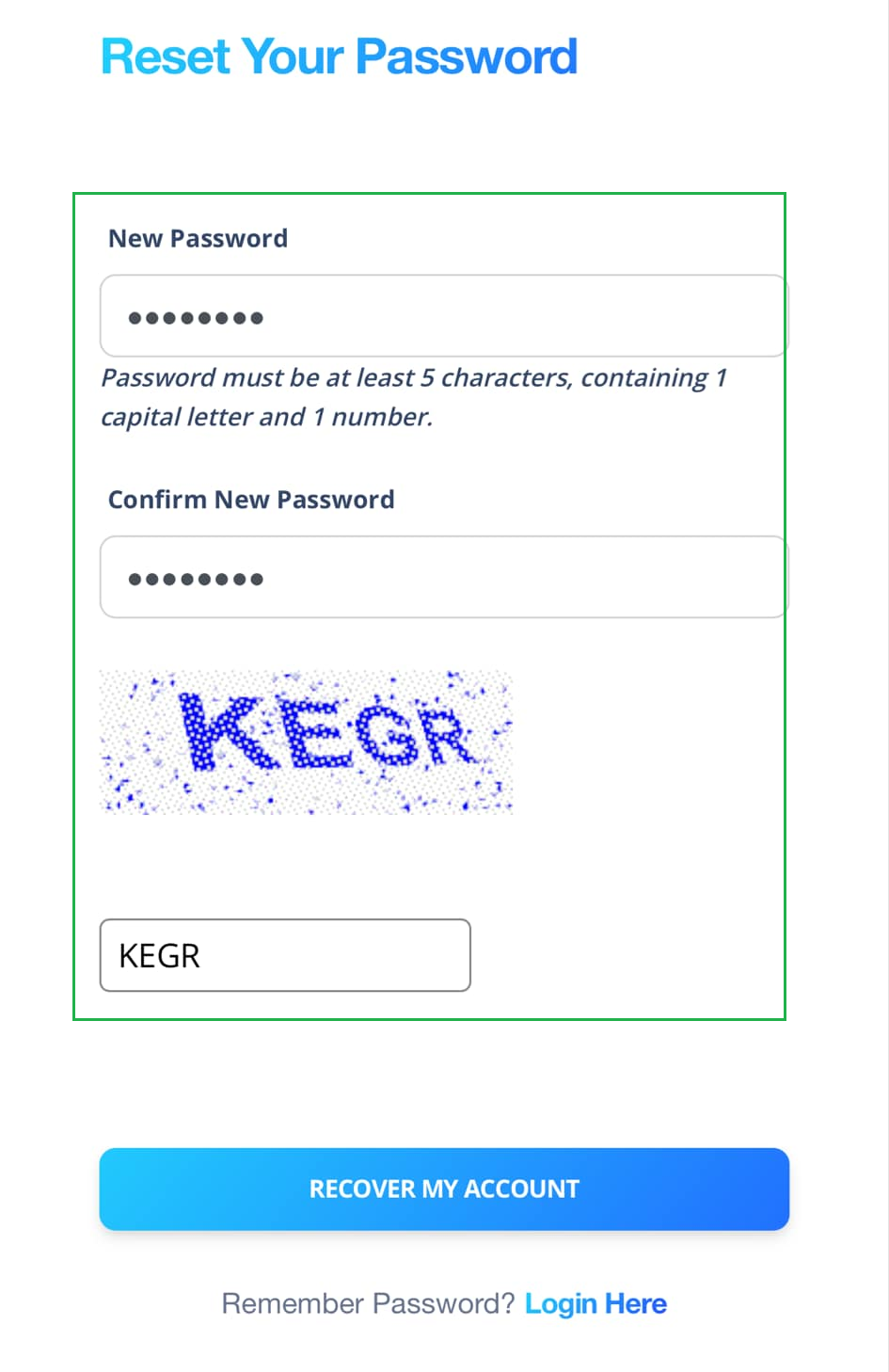
Step 8 - Set a New Password and Click "Recover My Account"
You will be redirected to the Reset Your Password page.
Enter your new password and complete the Captcha.
Step 9 - Return to the First Class App and log in with your email and new password.
If you encounter any issues, please reach out to support for assistance at support@memberretentionsystems.com.
Was this article helpful?
That’s Great!
Thank you for your feedback
Sorry! We couldn't be helpful
Thank you for your feedback
Feedback sent
We appreciate your effort and will try to fix the article