This article will give you details about the parent profile features and how to update contact information for the parent.
You can edit the parent details and delete the parent from the parent profile.
Editing Parent
Step 1 - Upon viewing the parent profile, it will default to display their details.
Step 2 - Click the edit (pencil) icon next to the field you want to change. Only that field opens for editing.
Step 3 - Update the field, then click the save button in that field. You don’t need to scroll to the bottom of the profile.
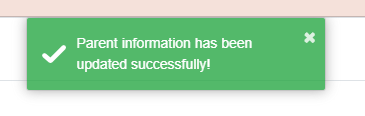
Step 4 - It will display a notification that the parent information is saved.
Delete Parent
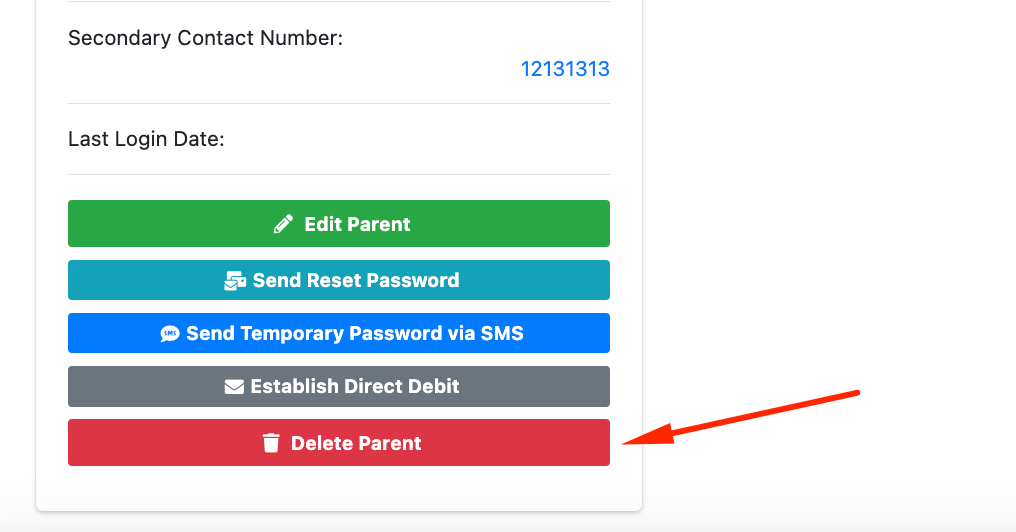
Step 1 - In the parent profile modal, click the “Delete Parent” button.
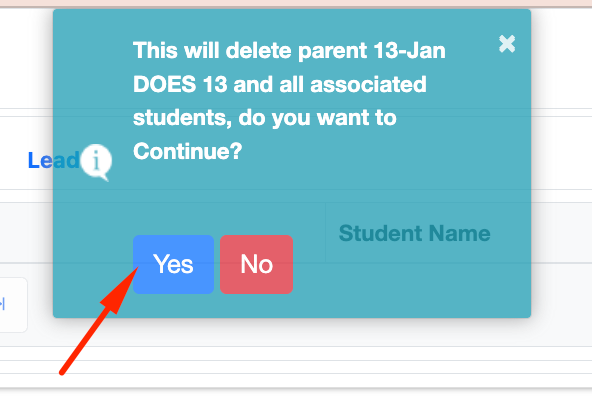
Step 2 - Click “Yes” to proceed. It will prompt a notification once deleted.
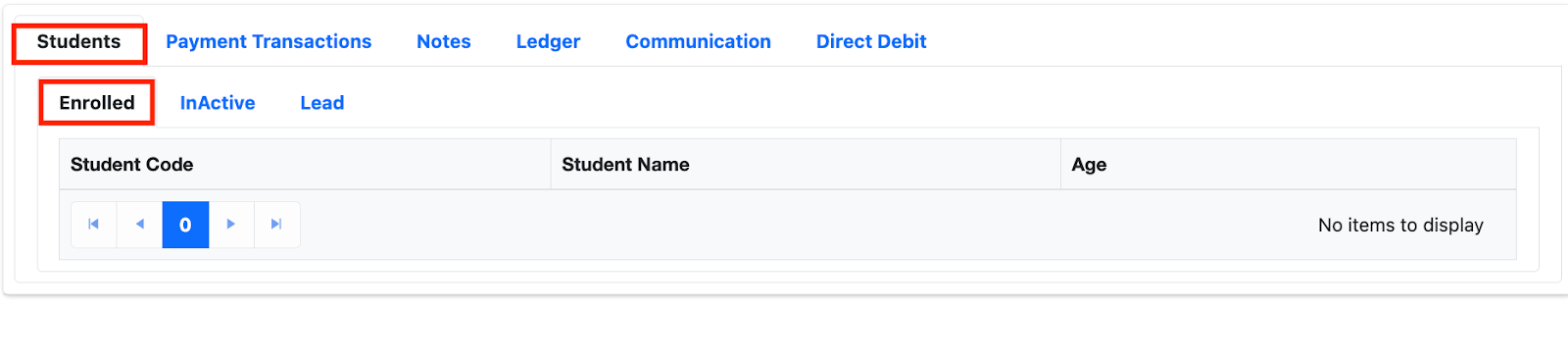
Students Tab under the Parent Profile
Enrolled
This section will display students who have actively enrolled on classes and are linked to the parent selected.
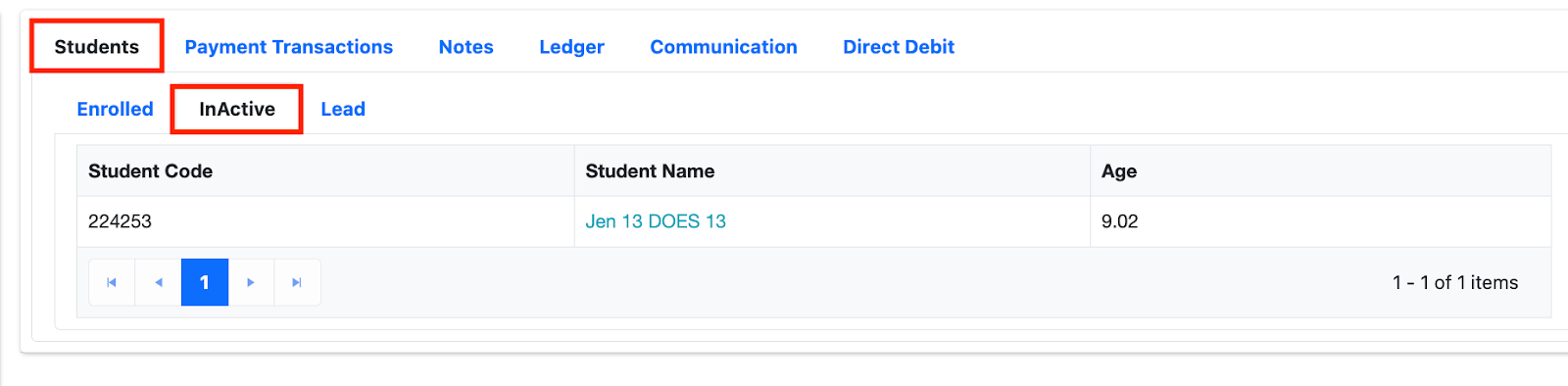
Inactive
In this section, it will display students that were tagged as inactive.
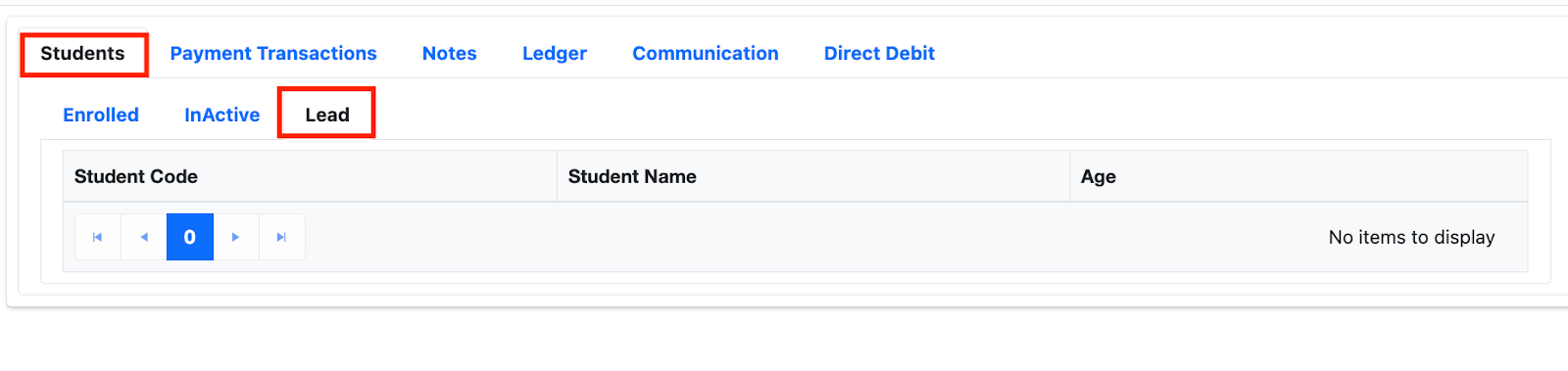
Lead
This section will display students who don’t have classes yet and are tagged as Lead.
How to hide deleted records from the Ledger
This article shows the steps on how you can display or hide the deleted records/invoices from the Ledger.
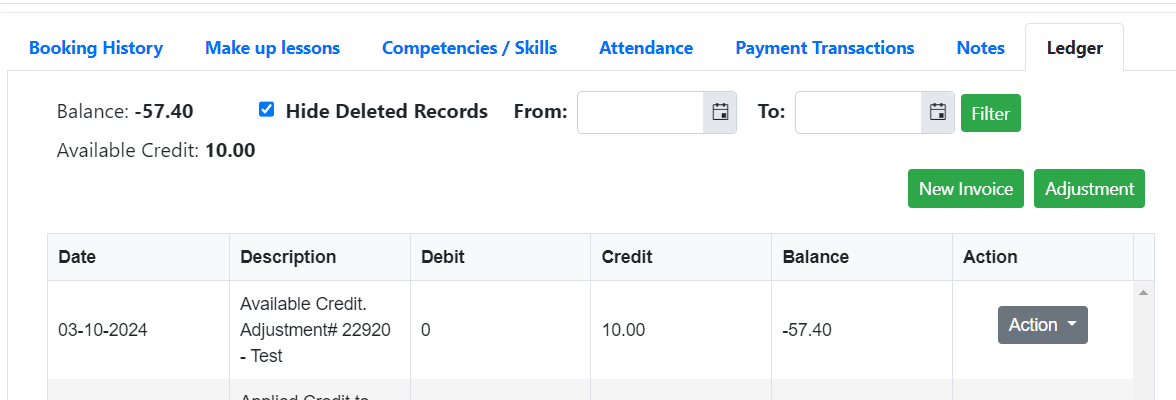
Step 1 - In the parent profile, click the “Ledger” tab to display the ledger of the parent.
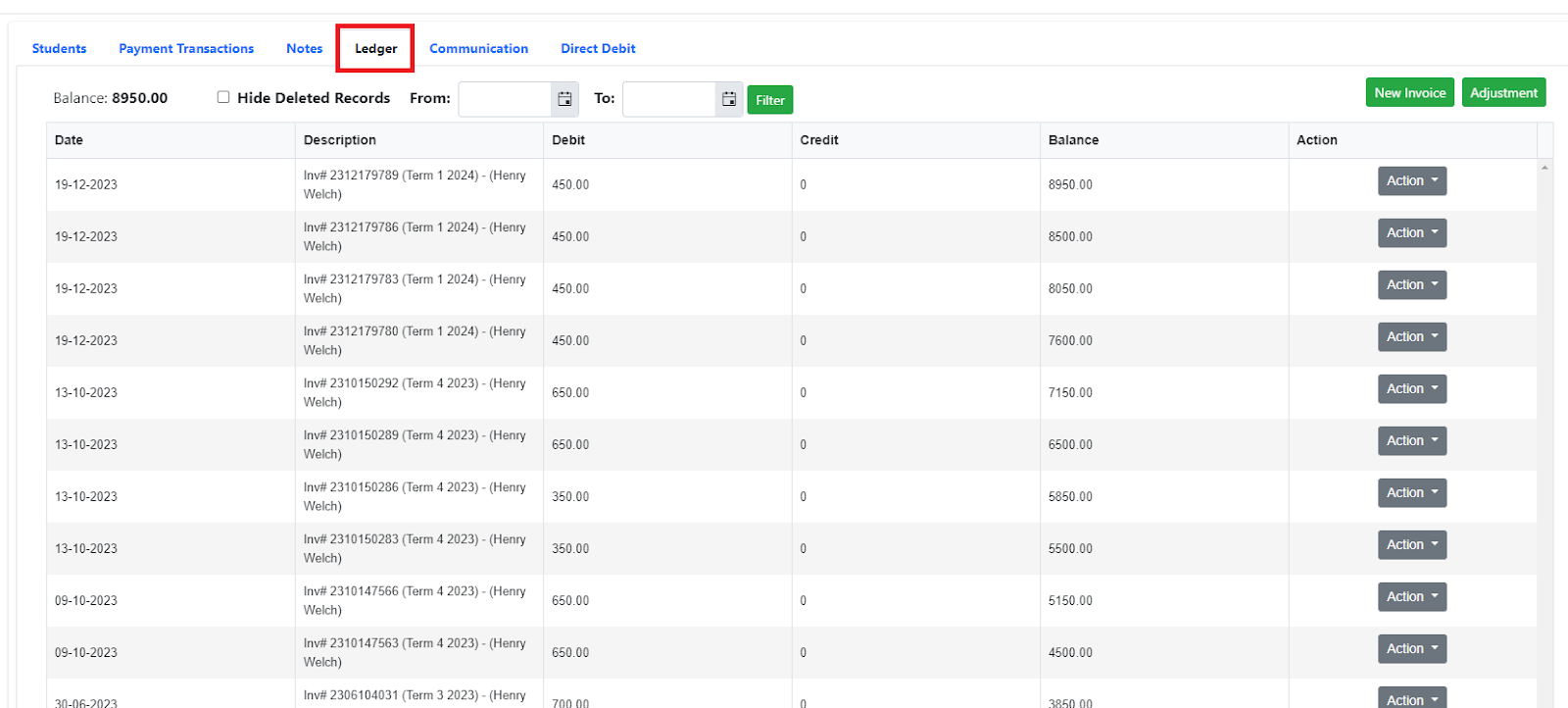
Step 2 - To hide deleted records, check the checkbox in hide deleted records.
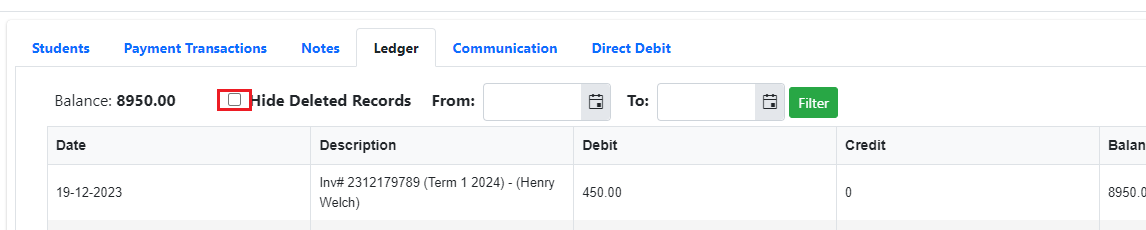
Step 3 - To unhide deleted records, untick the checkbox in unhide deleted records.
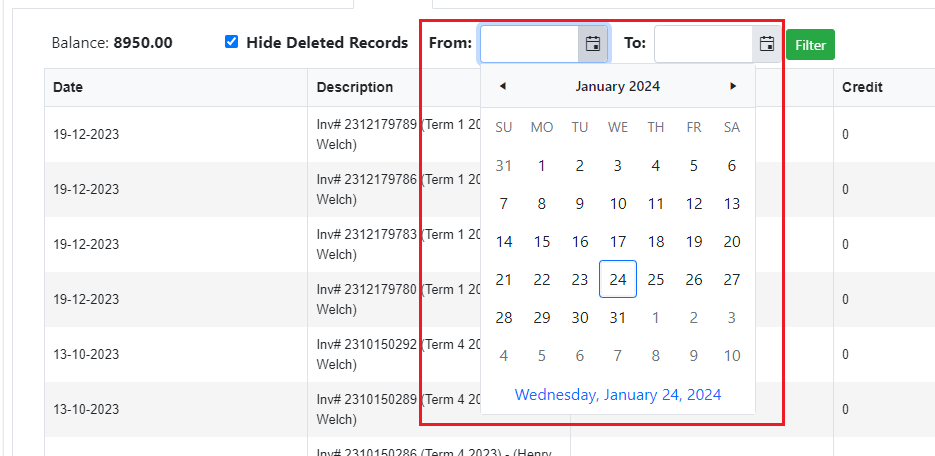
Step 4 - To filter the date, click the date format and select a date from and to.
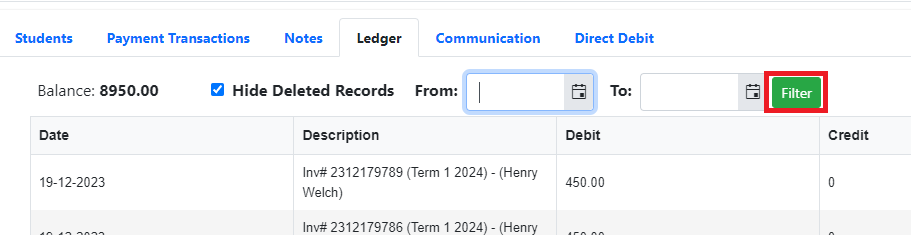
Step 5 - Click the “Filter” button. Then it will display all ledger transactions made on the selected date.
How to access the Payment Transactions under the Parent profile
This article discusses the payment transaction feature under the Parent profile.
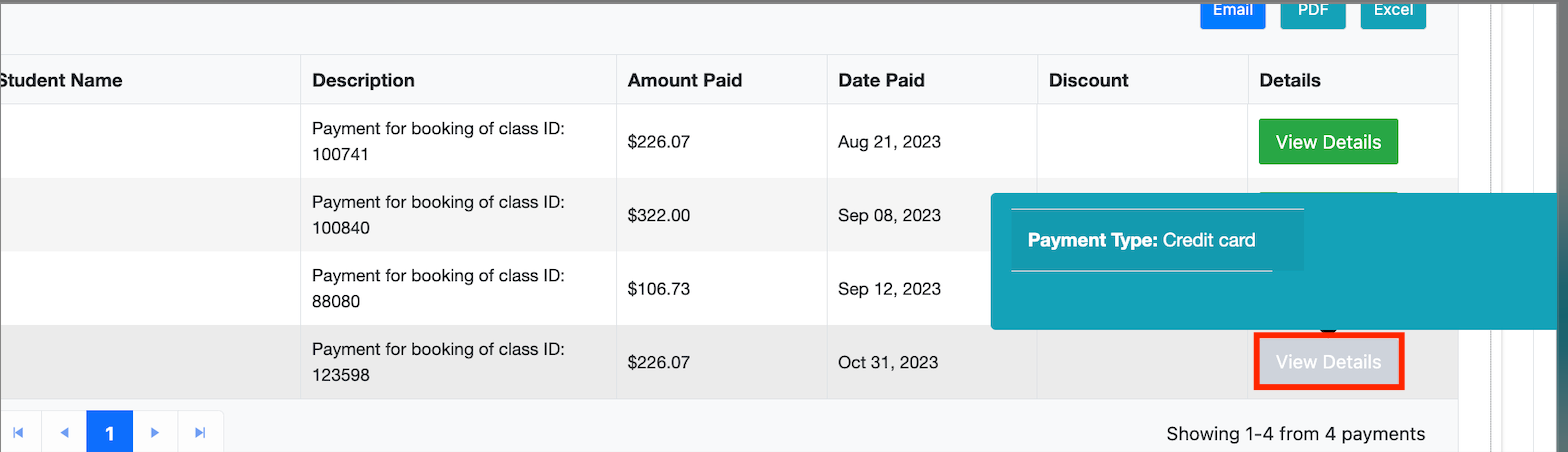
It displays all payment transactions of the parent and as default, it will display all lists of transactions made.
In the parent profile, click the “Payment Transaction” tab to display all payment transactions.
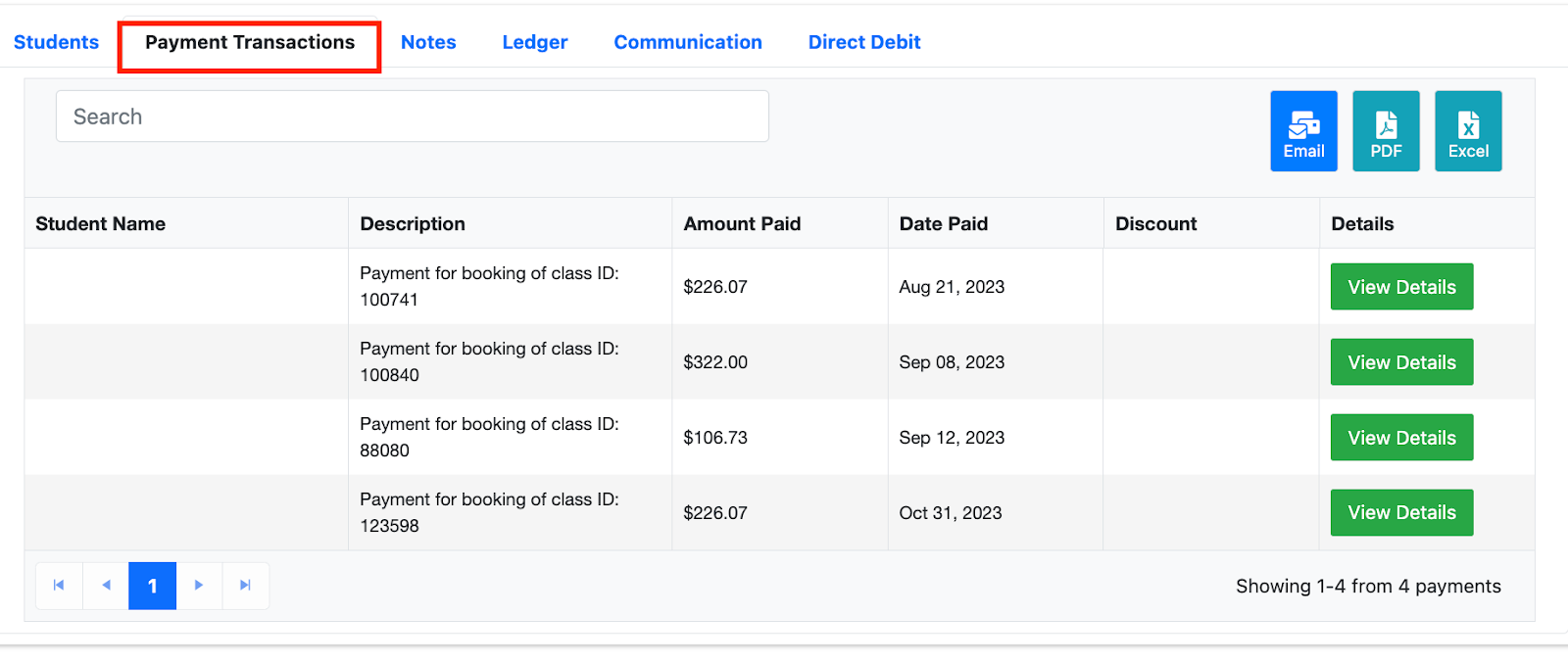
Hover the “View Details” button to view the payment type used in the transaction.
Direct Debit tab
The Direct Debit tab lists the parent’s scheduled and processed direct debit payments, for both Ezidebit and Worldpay.
Choose a status (Pending, Failed, Completed, Scheduled or Refunded) and a date range, then apply the filter. By default the date range runs from 1 January to today, so to see upcoming payments, set the To date later.
From the tab you can:
Void a scheduled payment, or tick several scheduled payments and void them together.
Edit the amount of a scheduled payment. Worldpay allows this until the payment is picked up for that day’s debit run.
Resend a failed payment on a date you choose.
Failed payments show the decline code and reason. A refunded payment shows as Completed (Refunded). Refunds can be made from this tab for Ezidebit payments only.
Invoice Summary tab
The Invoice Summary tab lists the parent’s invoices. Click Action on an invoice to choose:
View Invoice: available for every invoice.
Pay: for Pending or Partial invoices with a balance owing.
Edit: for Pending invoices.
Delete: for Pending invoices.
Paid and Voided invoices only show View Invoice. These are the same rules as the Ledger V2 tab.
Was this article helpful?
That’s Great!
Thank you for your feedback
Sorry! We couldn't be helpful
Thank you for your feedback
Feedback sent
We appreciate your effort and will try to fix the article