This article gives you the steps on how to print class sheets in First Class.
NOTE: Its important to note that we promote the use of mobile/smart devices for accessing class lists to view classes, & mark attendance and skills. The printing options serve as a good back up option and ultimately it is up to you if you wish to use a digital or paper based option.
There are a number of format options for printing classes in First Class.
Class sheet format options
Formats
1. New format- This format is our most comprehensive format and includes skills
2. Term based attendance- This format is ideal for term based swim schools and includes skills
3. Class list with students- This is a simple format which only lists the enrolled students and a few basic details such as age, medical and recommended level.
Attendance
There are two options for including attendance tracking on class sheets
Include attendance: This is only compatible with the new format and term based formats
Do not include attendance: You can choose to not include attendance tracking for any format by unclicking the attendance box.
Classes per page
There are two options in terms of the number of classes displayed on each page.
Multi class per page: Prints multiple classes on each page to maximise use of the page
One class per page: Prints each class on a separate page
Sort by teachers: This ensures each teacher/instructor's classes are separated by a break. This allows you to have clean sheets you can hand to each instructor without any mixing of instructors on a single page.
How to print class sheets
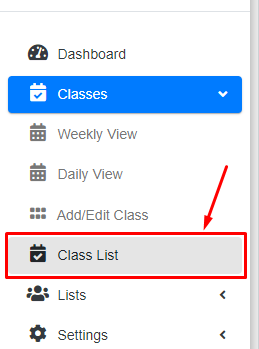
Step 1 - Within the Settings menu, under Classes, click “Class List”.
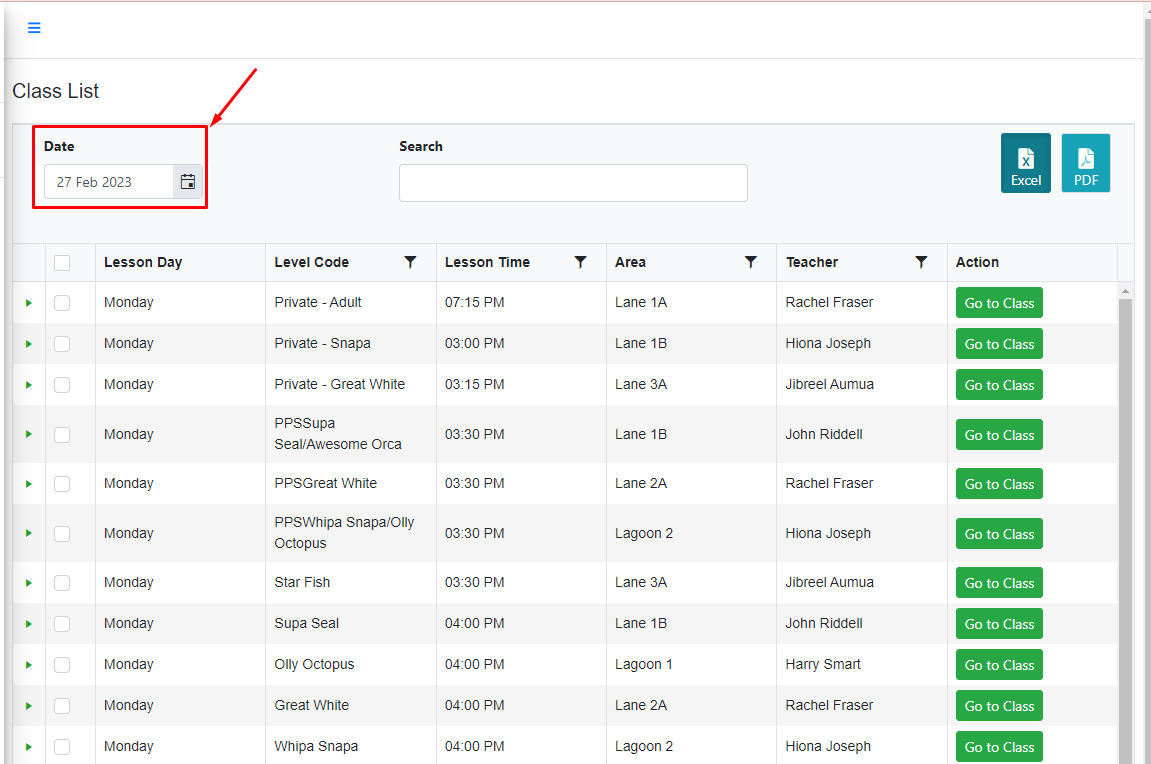
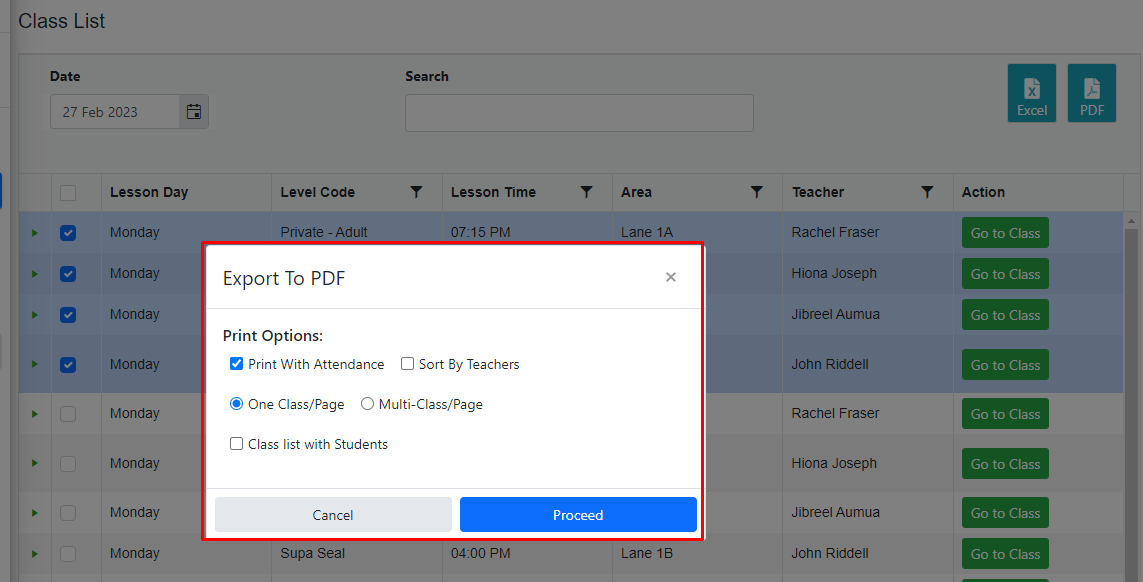
Step 2 - Select a date you want to print the class.
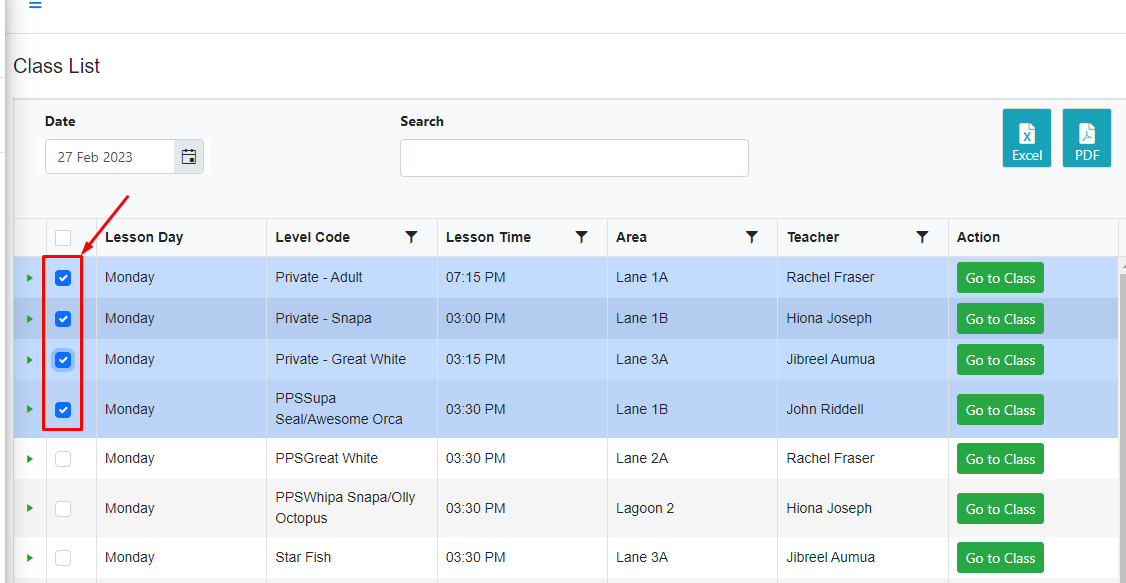
Step 3 - You can select the classes you want to print by ticking it in the left column. You may wish to search by teacher to group the specific teacher you wish to print classes for.
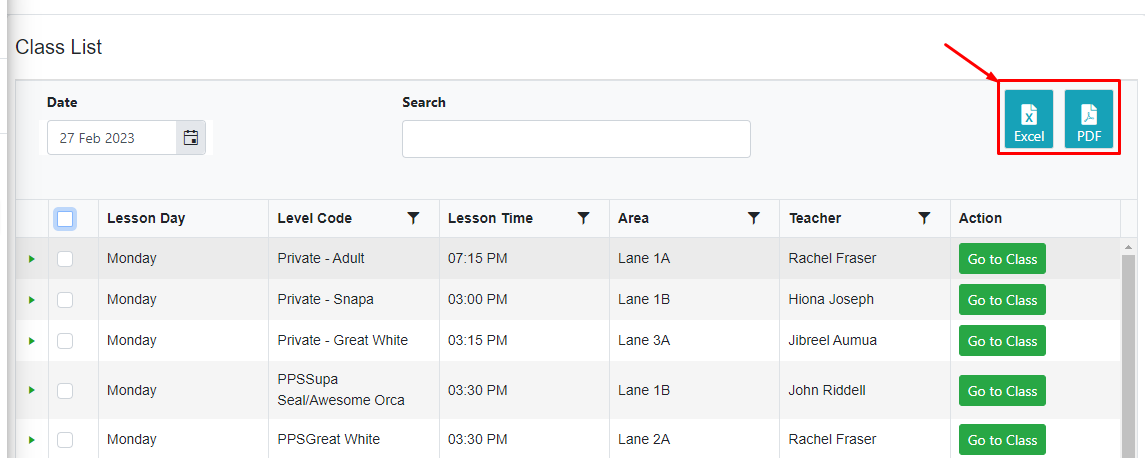
Step 4 - Click “Excel” or “PDF” to generate a PDF of the selected class list.
Step 5 - In exporting PDF, you can select the various print options as outlined at the start of the article to get the ideal format for your needs.
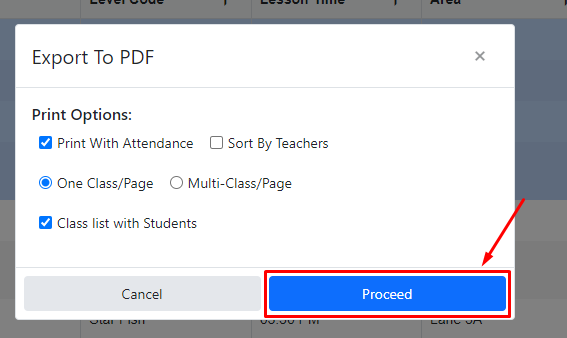
Step 6 - Click the “Proceed” button to generate a PDF.
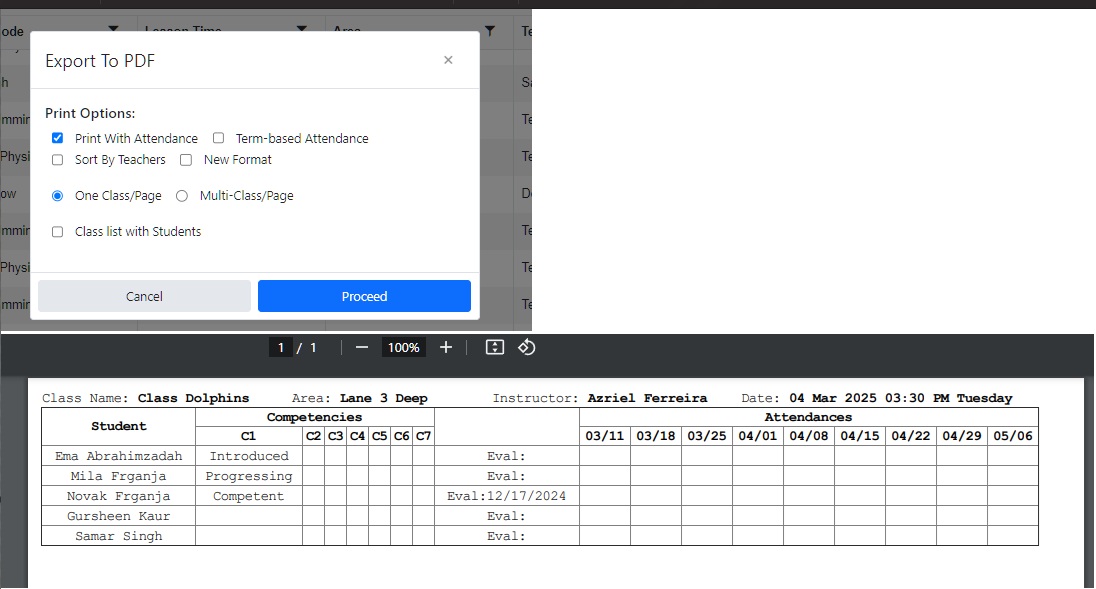
Step 8 - Wait for the file to be downloaded successfully. Double-click the files to open it.

NOTE: If you want to generate attendance more than 5 weeks, you can untick the 'new format' checkbox so you can get more weeks. But note that in old format, the medical, level and notes are removed.
If you want to export to excel rather than a PDF you can choose the export to excel option. The format for the excel option is limited to a single format.
Notes
The booking type for each enrolment is now shown after the students name. This is only available on the "new" class format.
The following abbreviations are used
MU=Make up
TR=Trial
CA=Casual
No abbreviation is used for permanent booking.
The skill and competency key can be included in the class lists by ticking the option. Include skill key. This helps instructors understand what each skill box represents. eg. C1= Swim freestyle 50 m
Was this article helpful?
That’s Great!
Thank you for your feedback
Sorry! We couldn't be helpful
Thank you for your feedback
Feedback sent
We appreciate your effort and will try to fix the article