Occupancy rates are an important thing to measure in your business.
Occupancy is measured by calculating the total number of available class spots against how many of those spots are taken.
For example
If you have 4 classes with a maximum capacity of 5, you have a total of 20 spots. If you have 16 of those spots filled, your occupancy would be 80% (16 enrolments divided by 20 spots)
Typically the higher your occupancy, the more profitable your business will be.
Occupancy is also important to measure to improve the efficiency of your business. You can use occupancy reporting to identify less popular days and levels and potentially consolidate classes based on your findings.
How to measure occupancy in First Class
The occupancy report is found within your reporting menu in First Class.
Start by entering the date range for which you wish to measure class occupancy for. This will default to the current week.
The report will display, the following columns
- Number of classes
- Number of available spaces
- Online availability (number of spaces made available for online bookings)
- Current enrolments
- Vacant spots
- Waitlist
- Occupancy percentage/rate
- Online occupancy (enrolments v available spots online)
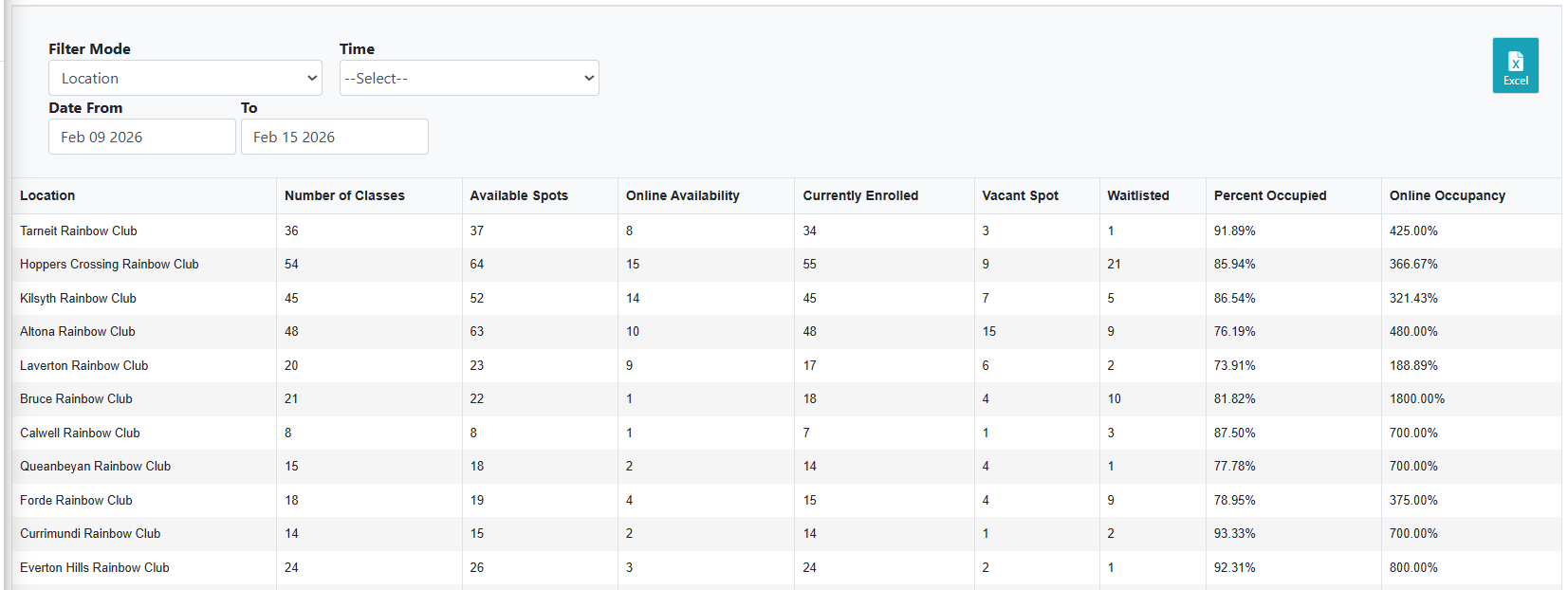
If you have multiple locations, you can see occupancy across each location.
You can also filter the mode to view occupancy for levels, days of the week, and time (AM/PM) to gain deeper insights about the capacity of your classes based on certain variables.
Note: You must have online availability set up for classes for these metric to reflect properly.
See article on online availability here for more details.
Was this article helpful?
That’s Great!
Thank you for your feedback
Sorry! We couldn't be helpful
Thank you for your feedback
Feedback sent
We appreciate your effort and will try to fix the article