If you are using direct debit in First Class, failed payments are something you will need to manage and has a process for.
As a default, your First Class account will be set to automatically re-try failed payments after 3 days post failure.
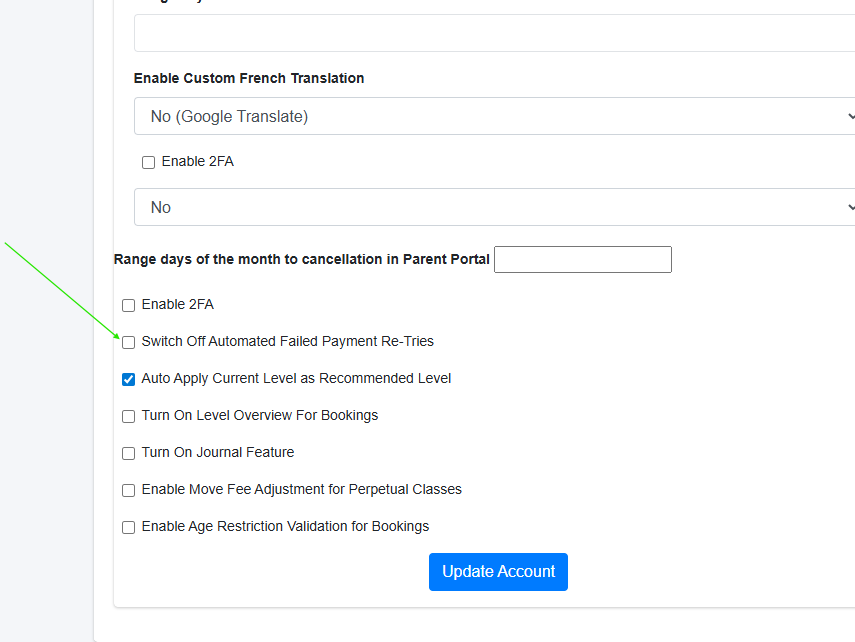
If you wish to turn off this function, you can do so via your account settings
How to Turn Off Automatic Re-Try
If you would prefer to manually manage failed payments:
Go to Profile
Click Account Settings
Disable the automatic retry option
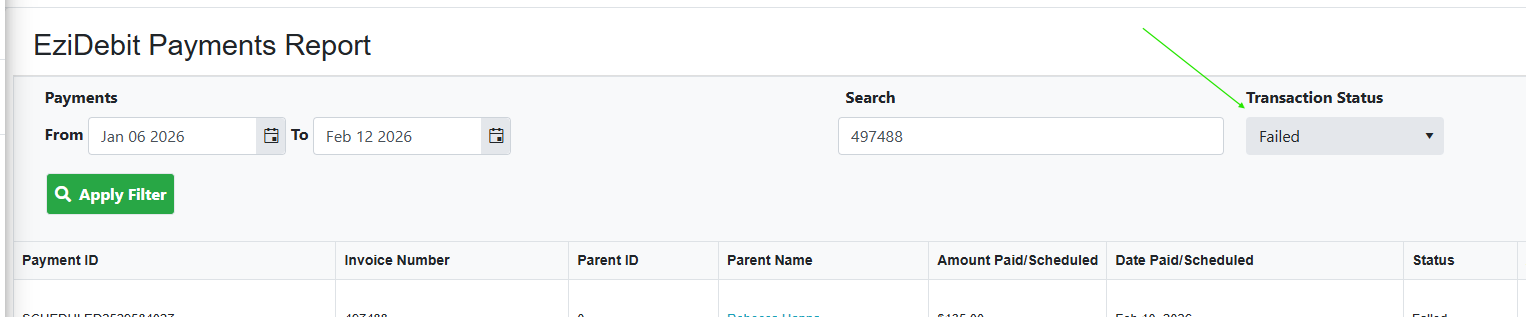
If you go to your Ezidebit report or payment gateway report, you can get a list of failed payments by using the failed filter.
If the auto re-try feature is turned on, no action is required, the system will automatically re-schedule failed payments.
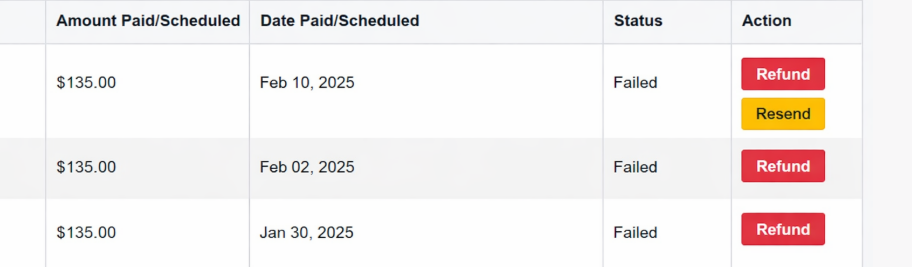
Failed payment statuses and reasons
When a payment fails, the invoice shows why it failed (for example, Rejected) and one of two statuses:
Failed - Retrying: a retry has been scheduled for 3 days after the failure. No action is needed yet.
Failed: the payment won't be retried automatically. This happens when automatic re-try is turned off, when the scheduled re-try also fails, or when the decline reason means a re-try can't succeed.
Some card declines are never re-tried, even with automatic re-try turned on. For example, Stripe payments declined because the card was reported lost or stolen go straight to Failed. Contact the customer for a new payment method.
The failure reason is cleared once the invoice is paid.
What if the re-try fails?
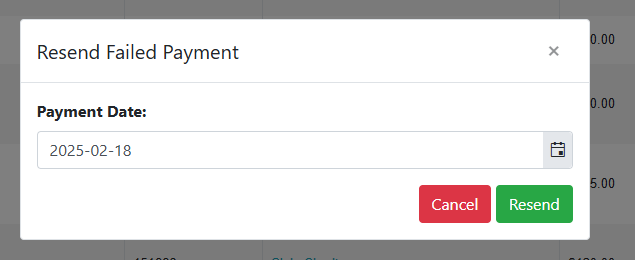
If the re-try fails, there is an option to manually re-schedule the payment. A re-send button will appear which will allow you to choose a date to re-schedule another attempt.
We recommend you contact the customer before this step to ensure availability of funds and card validity
Failed payment SMS
A great option to automate part of the failed payment process is to leverage SMS failed payment notifications.
When turned on, these SMS notifications are sent to customers who have had a failed payment and can outline your next dishonour step: Ie. The payment will be re-tried in 3 days.
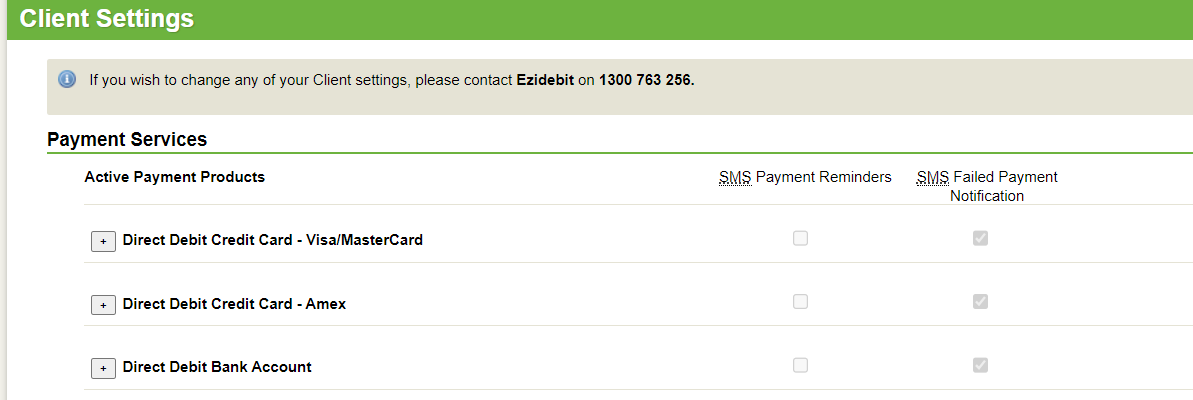
If you have any questions about your Ezidebit set up in First Class please reach out to the First Class support team.
How to manually re-schedule your failed debits?
If your account is set up to take no action for dishonoured or failed payments, or you have exhausted all re-try attempts, you will want to manually take action to recover those failed payments.
There are two options here
Option 1: An easy way to do this is to manually add the failed payment amount to a future scheduled debit for that customer.
If you customer has a direct debit schedule with future debits, you can use the edit feature within the debit debit tab of the customer profile to edit the future amount.
Example
If the customer had a failed payment of $63.00 and their next scheduled payment is for $63.00 you could edit that future payment of $63.00 to $126.00 to get their schedule back on track.
Option 2: You can convert the invoice from scheduled to pending using the admin login. This will allow a customer to manually process a payment via another means.
Recommended Internal Process
To minimise admin time and improve recovery rates, we recommend:
Sending out a reminder to direct debit customers before key billing cycles. If your billing is (perpetual) you can send a reminder before your billing deduction date. If you are doing term based billing, send a reminder at the start of the term.
Enable automatic retry
Enable failed payment SMS
Contact customers before repeated retries
Assign one team member to review failed payments weekly
Important notes: Some payment gateways have their own internal automated re-try methods.
As First Class manages re-try scheduling, it is important to ensure these methods are not turned on inside the payment gateway.
By default when First Class creates a payer in the gateway, it will ensure the biller is created with no action for re-tries. If you manually over-ride this on a payer level, you could end up with duplication of re-try efforts. If in doubt, please speak to your account manager
Further tips for failed payments can be found in our guide below
If you have any questions, feel free to reach out to our support team at support@memberretentionsystems.com
Was this article helpful?
That’s Great!
Thank you for your feedback
Sorry! We couldn't be helpful
Thank you for your feedback
Feedback sent
We appreciate your effort and will try to fix the article