This article provides instructions on how to make multiple payments / manually record payments through the Ledger tab.
It walks you through the process of selecting multiple outstanding balances, choosing a payment method, and completing transactions, all within the Ledger section of First Class.
Here are the steps to make multiple payments in the Ledger tab:
Step 1 - Search for the student and access the Ledger tab.
Step 2 - On the Ledger tab, view the outstanding invoices.
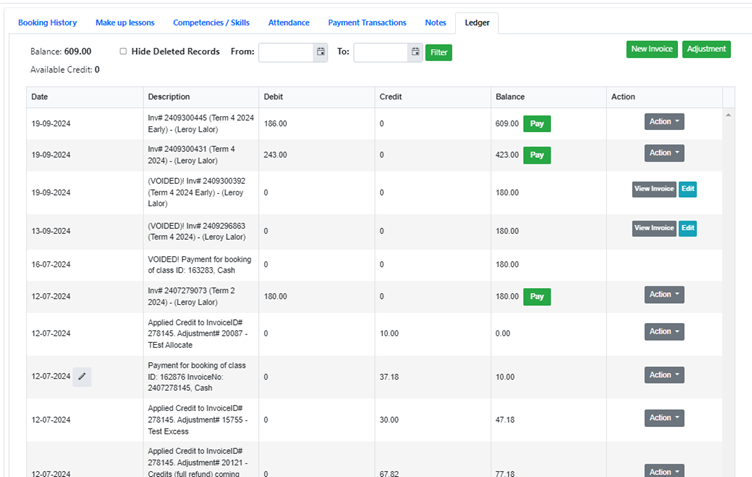
Step 3 - Select an Invoice and click the Pay button next to any invoice you wish to pay.
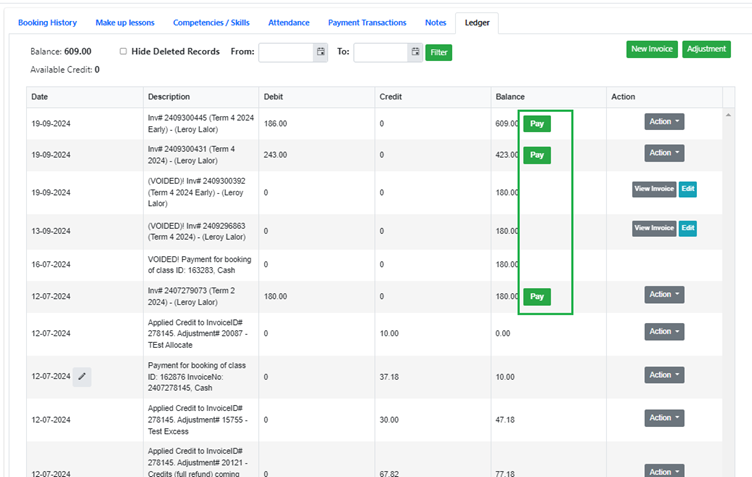 Step 4 - The
"Record a Payment" screen will appear, displaying all of the student’s outstanding invoices.
Choose Invoices to Pay
- Select the invoices you wish to pay by ticking the boxes.
- Untick any invoices you do not want to pay at this time.
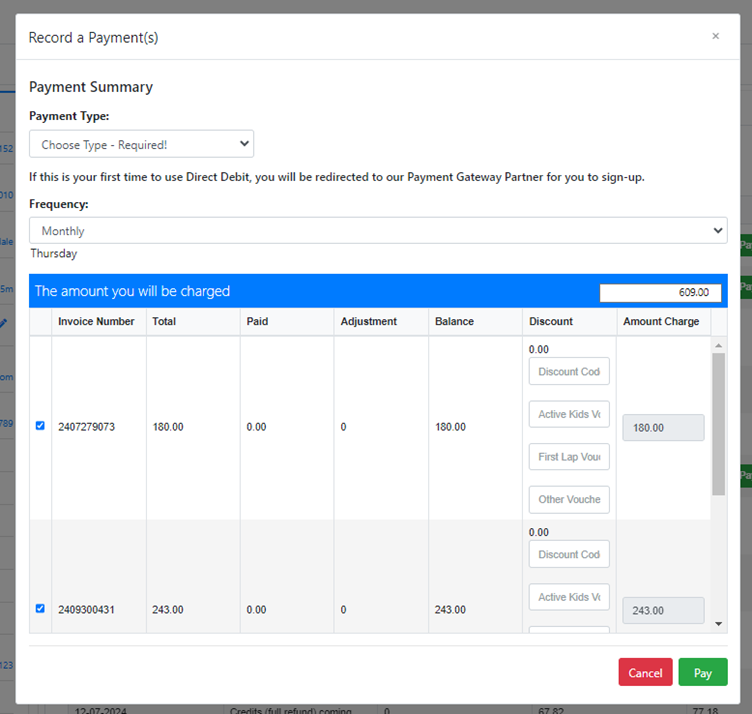
Step 5 - Choose your preferred Payment Type (e.g., credit card, bank transfer) and click Pay.
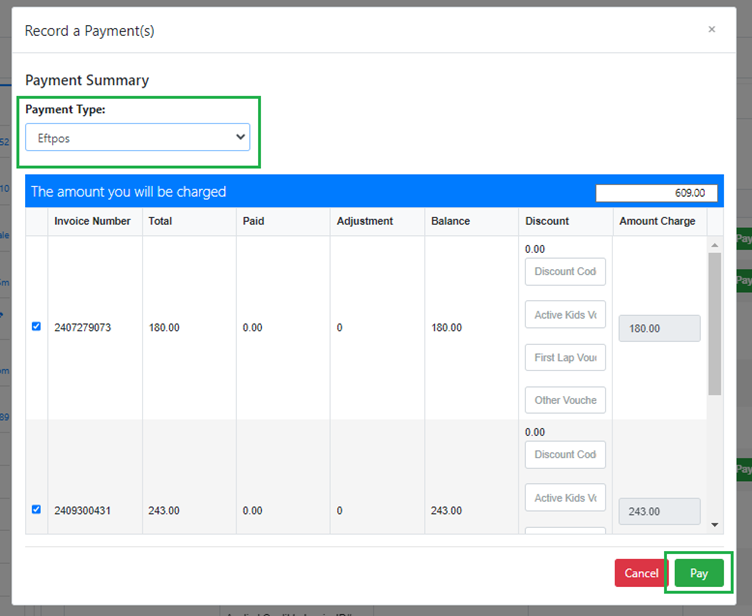
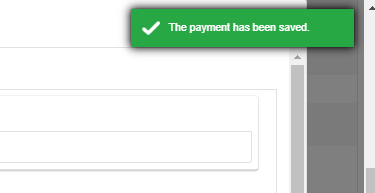
Step 6 - Payment Confirmation - A pop-up message will confirm that the payment has been successfully saved.
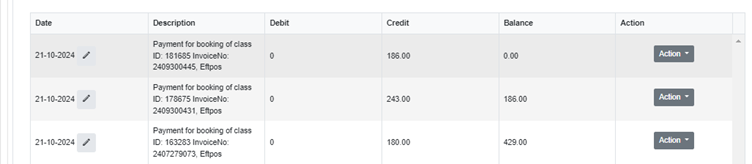
Step 7 - The ledger will update automatically, changing the status of the paid invoices to "Paid" along
with today’s date.
Tips
Can I update or back date a payment date to reflect when a payment was taken?
Yes, on the ledger, you can update the date a payment was taken by clicking the edit pencil symbol next to the date of the payment line item.
Was this article helpful?
That’s Great!
Thank you for your feedback
Sorry! We couldn't be helpful
Thank you for your feedback
Feedback sent
We appreciate your effort and will try to fix the article