First Class software allows you to edit existing classes.
There are two main workflows for updating or editing a class or classes.
Option 1- Via the add/edit class section
Option 2- Editing via the scheduling views (weekly or daily views)
Option 1- Via the add/edit class section
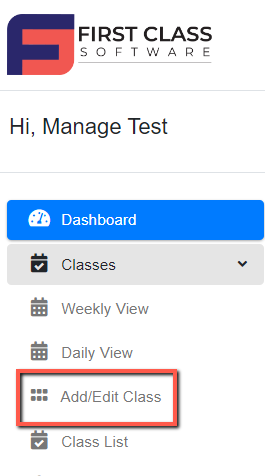
To edit classes, under the Classes tab, select Add/Edit Class.
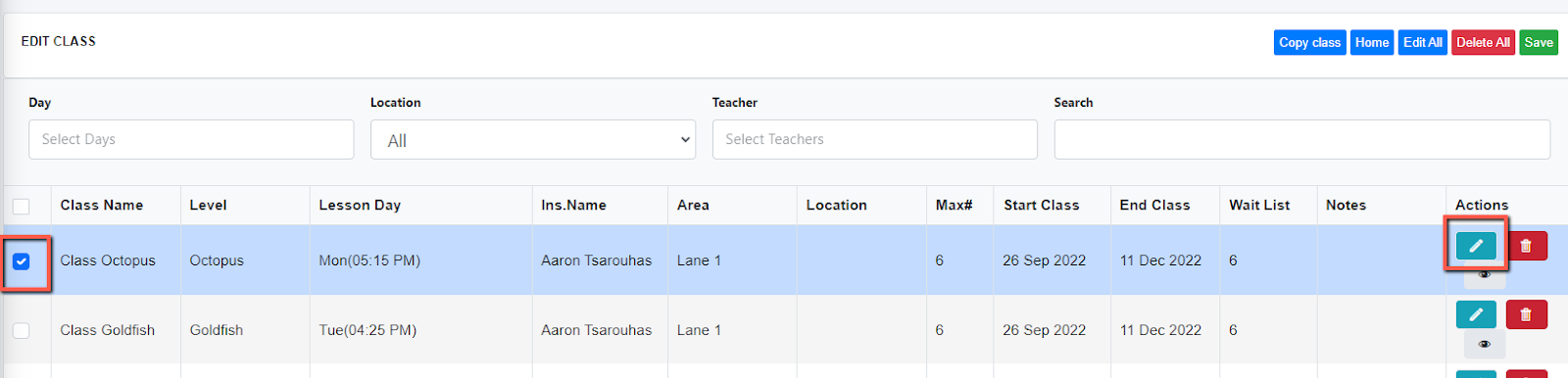
If you wish to edit just 1 class, click on the radio button on the left side of the class, then click the Edit (Pencil icon).
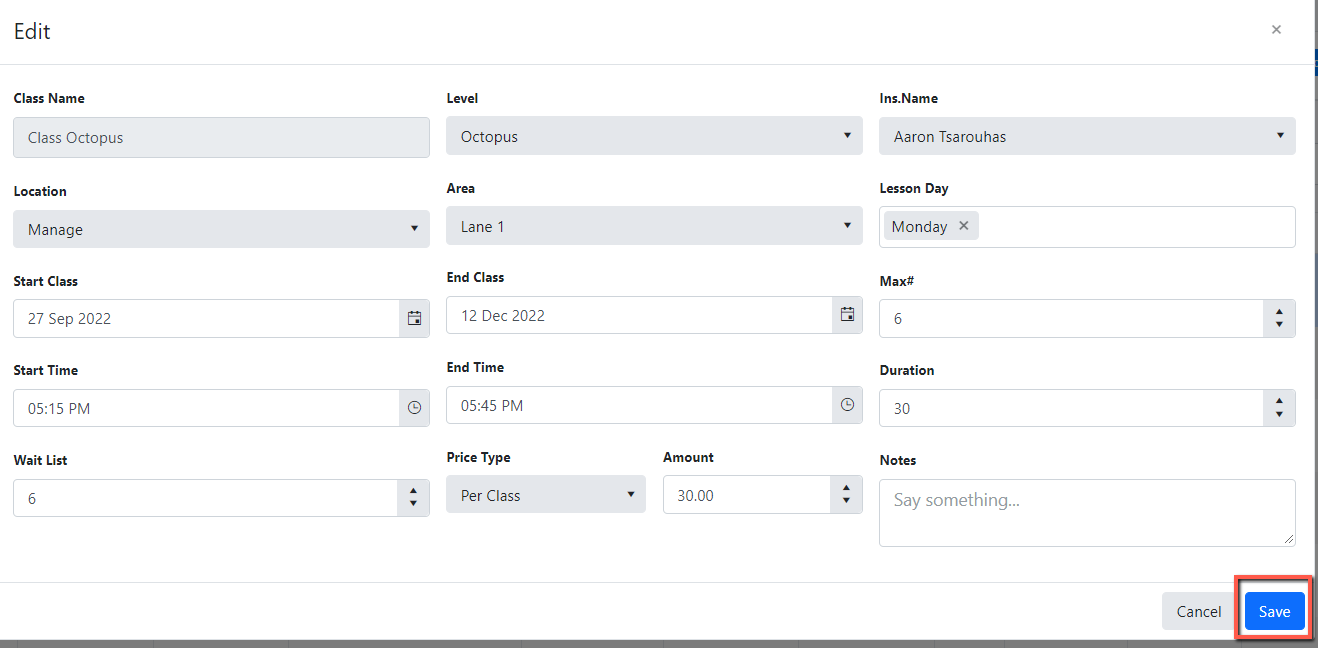
You may then edit the class under this Edit tab. After making changes, click Save.
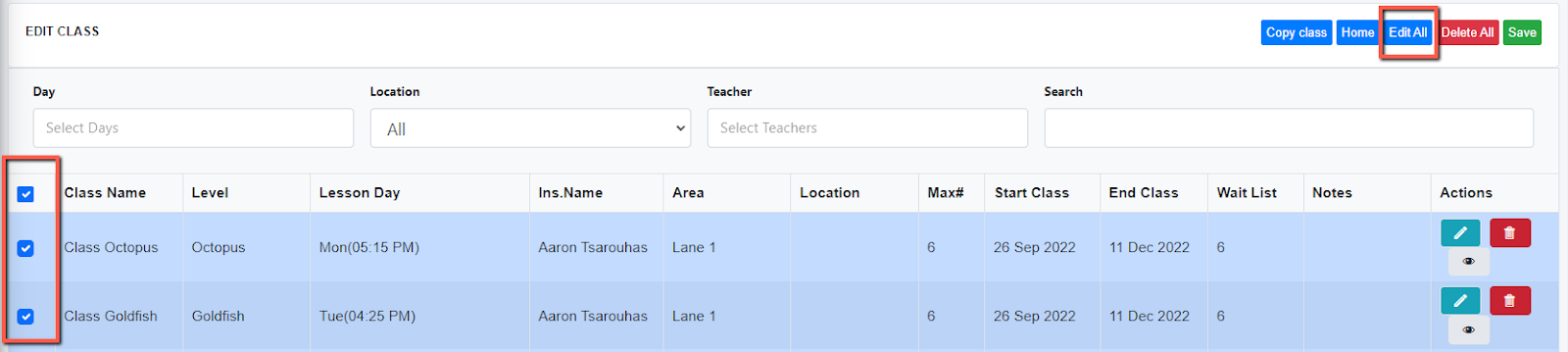
If you want to edit multiple classes, click on the radio button beside the class name to highlight all classes, then click Edit All. After making changes, click on the Save button.
Option 2- Editing via the scheduling views (weekly or daily views)
Step 1: Click on the class you wish to edit
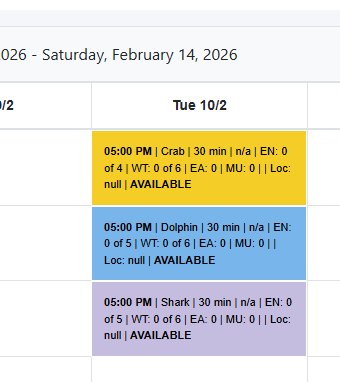
Step 2: Select the edit class option
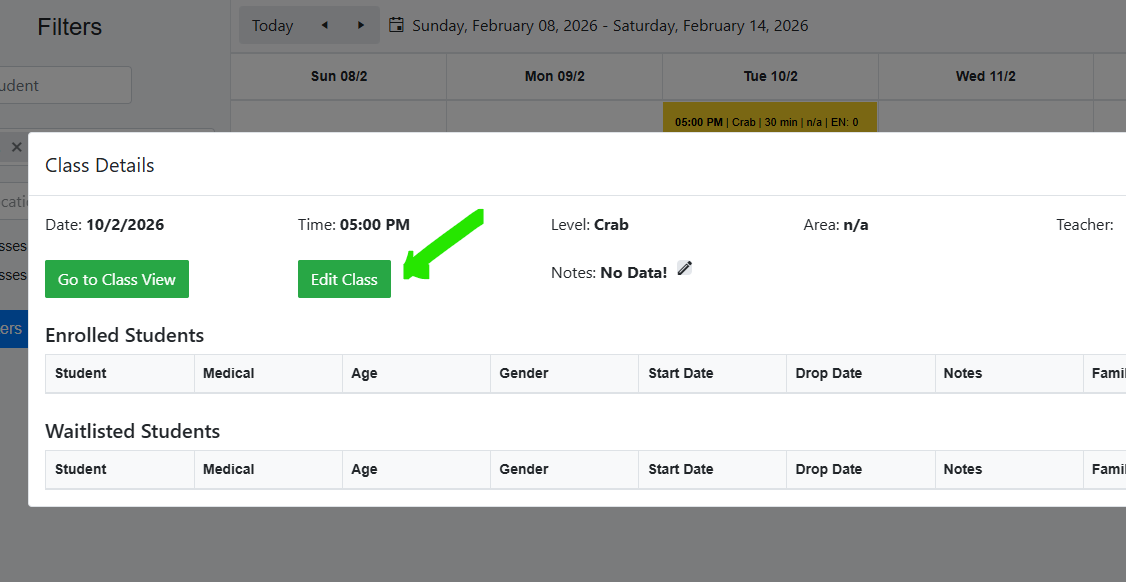
Step 3: A edit modal will pop up, make the desired changes and then click save
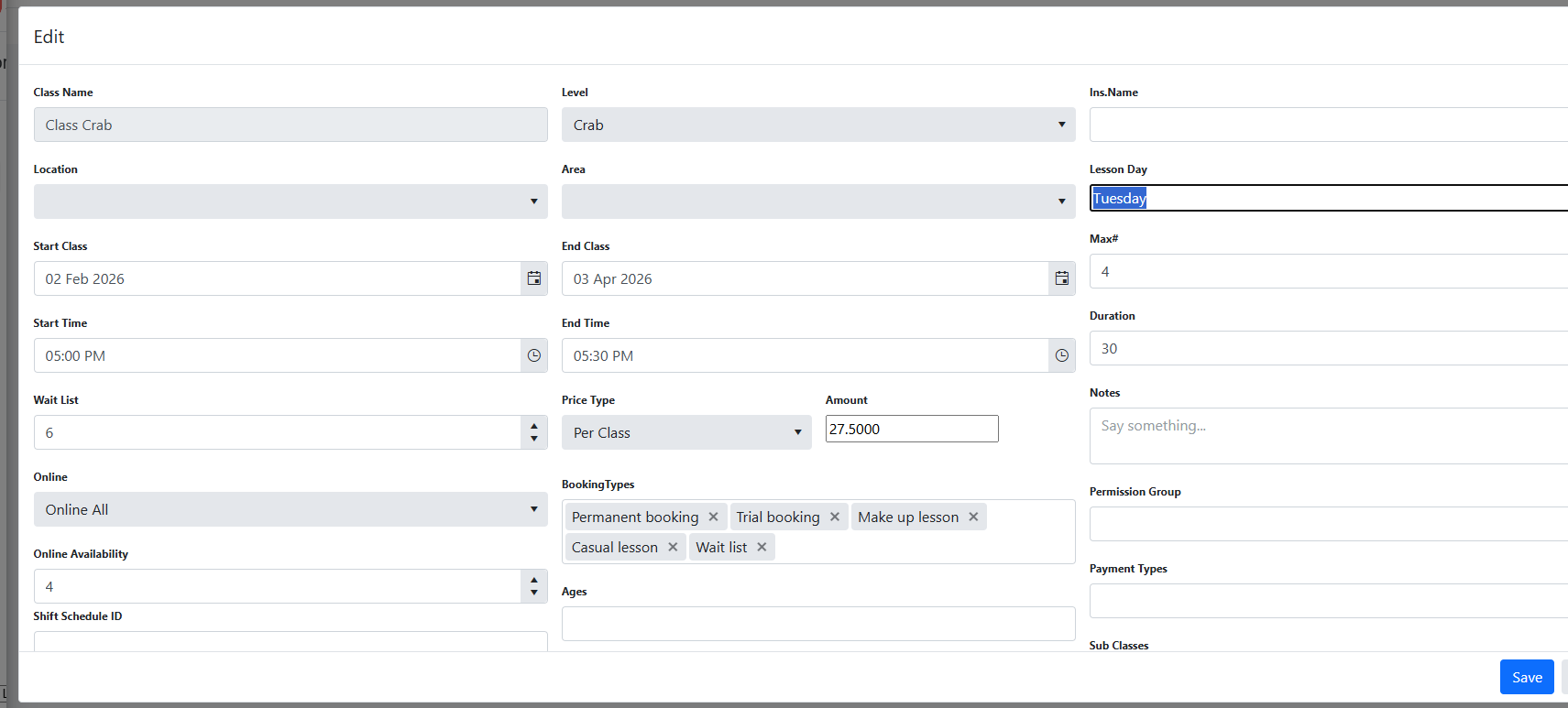
Note, you can only edit one class at a time via the scheduling views. If you want to edit multiple classes at once, you can use the edit all feature on in the add/edit class page.
Was this article helpful?
That’s Great!
Thank you for your feedback
Sorry! We couldn't be helpful
Thank you for your feedback
Feedback sent
We appreciate your effort and will try to fix the article